



PYE Agent Curator is a professional desktop application for creating, managing, and executing AI agents based on LangGraph. The tool allows:
Beyond native functionalities, Curator works as an agentic orchestrator (AI RPA), capable of loading and executing externally developed LangGraph code. This allows you to use the Curator interface to monitor logs and manage complex flows created in your own development environment, bringing RPA robustness to Artificial Intelligence.
The first step to start using PYE Agent Curator is to download the installer for Windows. After downloading, it is essential to install the program by following all the steps indicated by the installation wizard to ensure all dependencies are correctly configured.
When opening the application, you will be presented with the login screen:
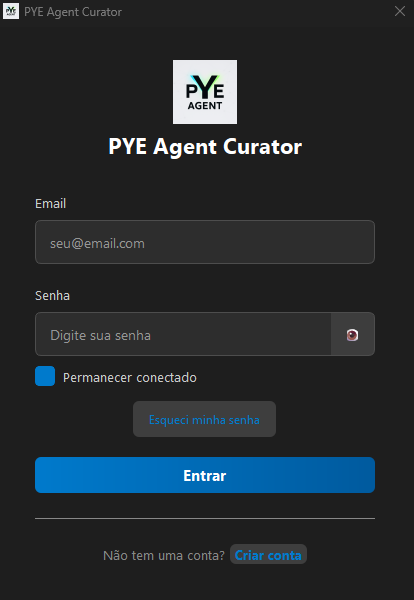
| Action | Description |
|---|---|
| 👁️ Show/Hide password | Click the eye icon to view the password |
| 🔑 Forgot my password | Click the link to receive a recovery email |
| ➕ Create account | Click "Create account" to register |
After logging in, if your account does not yet have an active license, the activation screen will be displayed:

PYE-XXXX-XXXX-XXXXFor the agents to work, you need to configure the API keys from the AI providers.
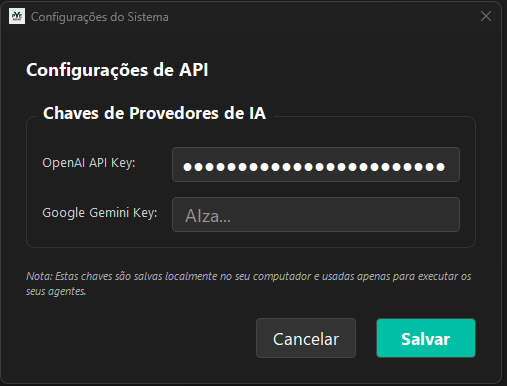
| Field | Description | Format |
|---|---|---|
| OpenAI API Key | Key for GPT models | Starts with sk-... |
| Google Gemini Key | Key for Gemini models | Starts with AIza... |
