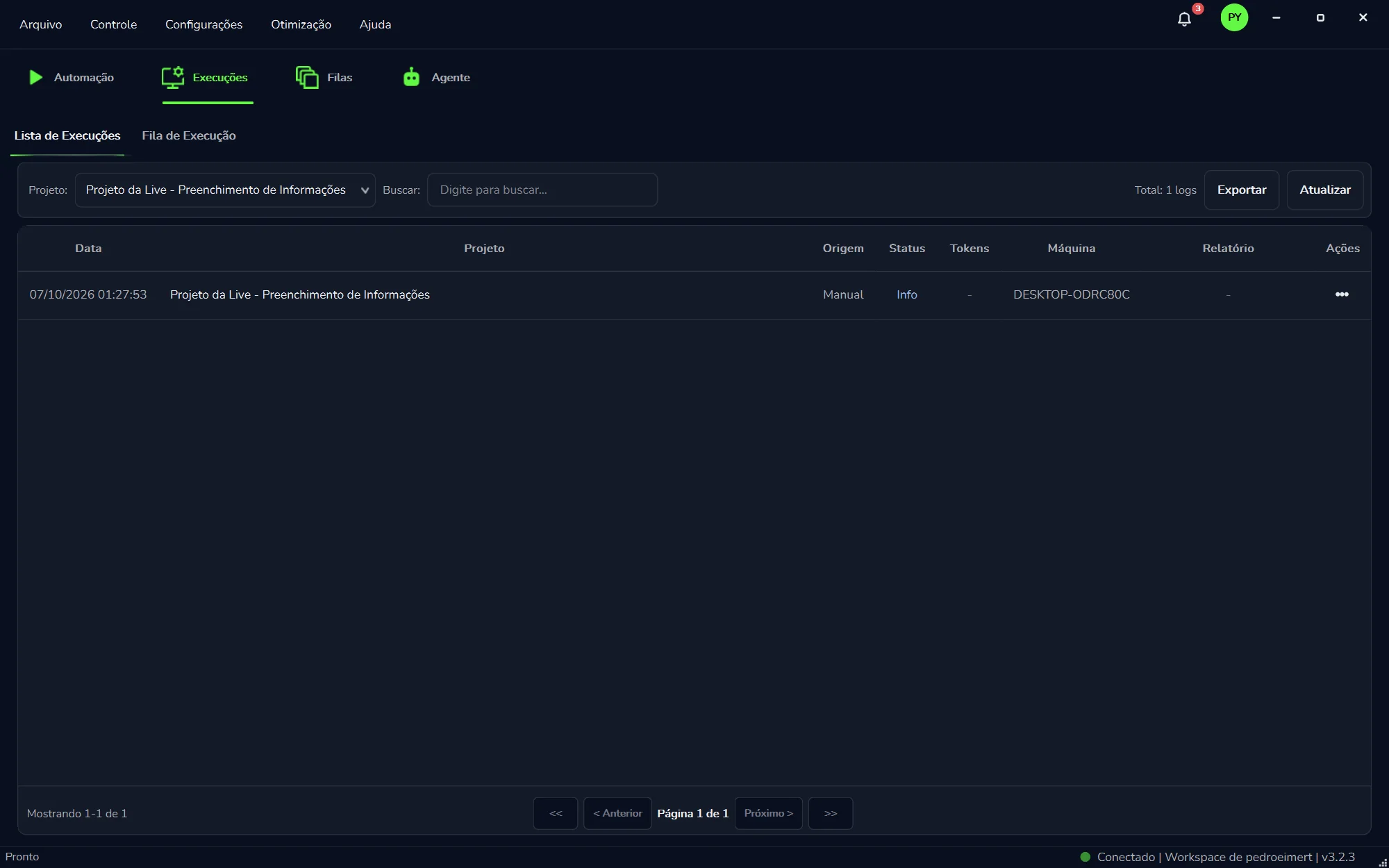
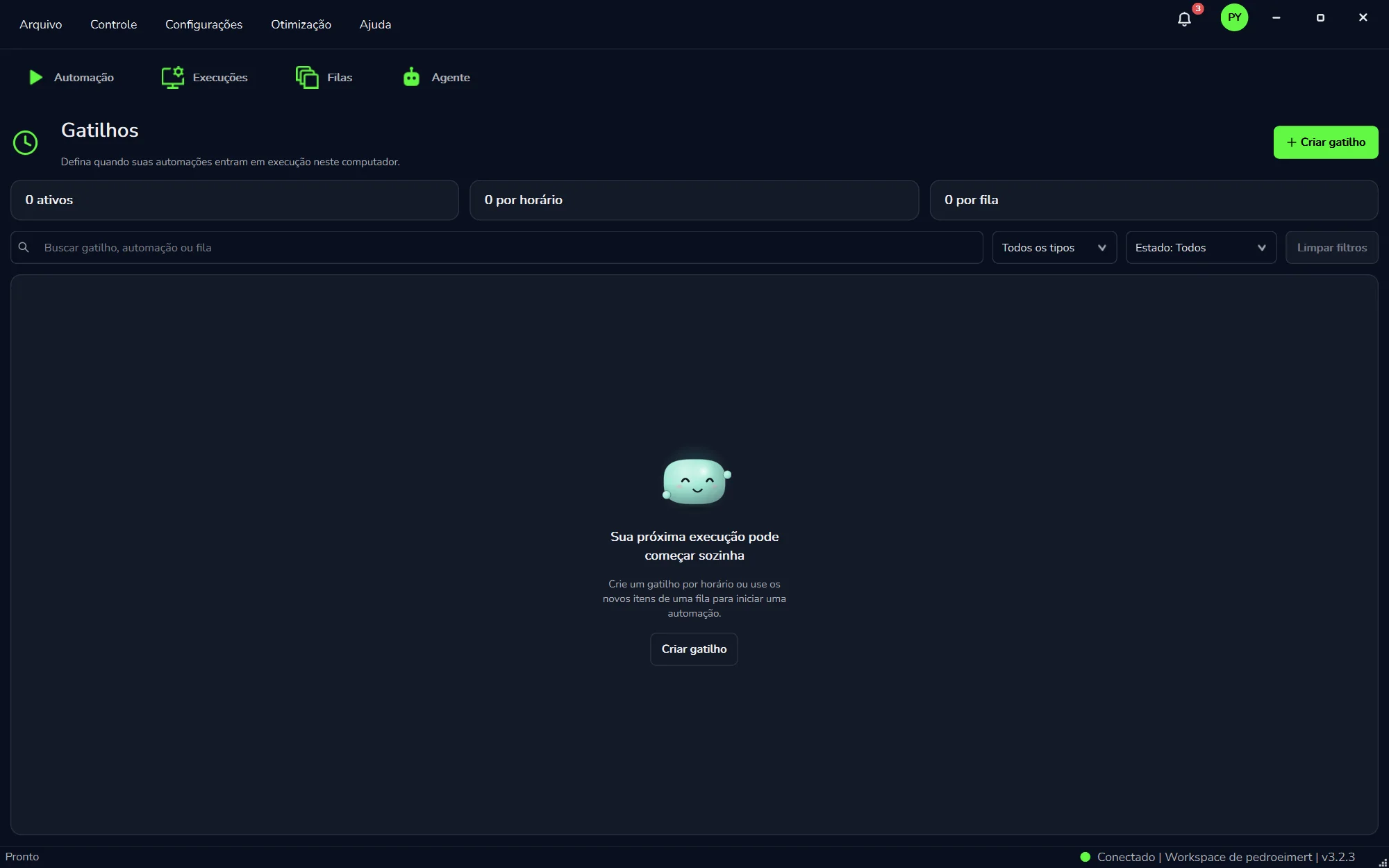
Once an automation is ready, day-to-day work comes down to two questions: what has run? and when does the robot run on its own? The “Execuções” (Runs) tab answers the first: it is the history of every run, with its date, origin, status and machine. The “Gatilhos” (Triggers) screen answers the second: there you set when your automations start running on this computer, at a set time or when new items reach a queue.
And if a run breaks with a technical error, the Curador, Curator's self-healing agent, takes over right away when it is turned on for that automation: it looks at the screen, decides and fixes.
Every run of an automation is recorded in the “Execuções” (Runs) tab, the second tab at the top of the window. To check whether the robot ran and how it ended:
Open the “Execuções” tab
It sits at the top, between “Automação” (Automation) and “Filas” (Queues).
Stay on “Lista de Execuções”
It is the first of two sub-tabs. The other one, “Fila de Execução” (run queue), sits right next to it.
Pick the project
In “Projeto:” (project), leave “Todos” (all) to see everything, or pick one automation to see only its runs.
Read the row
Each row is one run: when it ran, how it started, how it ended and on which machine. See what each column says.
Click “Atualizar” if needed
A run just finished and isn't there yet? “Atualizar” (refresh) reloads the list.
The top of the “Execuções” (Runs) tab, on “Lista de Execuções”. Click to see the whole screen, with one “Manual” run and the paging at the bottom.
The list or the results panel: which one to use
In the open project, the “Resultados da Última Execução” (last run results) tab shows the log line by line, for the last run only. The “Execuções” tab keeps every run, from every project. Use the list to learn what ran and when; use the panel to read what happened inside the run. See Results and logs.
What each column says
Every row has the same eight columns. Below, the list redrawn with made-up examples so it reads well on any screen:
Lista de ExecuçõesFila de Execução
Projeto:TodosBuscar:Digite para buscar...Total: 3 logsExportarAtualizar
Mostrando 1-3 de 3<<< AnteriorPágina 1 de 1Próximo >>>
Redrawn example with made-up names. The columns, buttons and labels are the ones on the real screen.
Column
What it shows
“Data”
The run's date and time (“Data”), such as “07/10/2026 01:27:53” (day/month/year).
“Projeto”
The automation that ran (“Projeto”, project).
“Origem”
How the run started (“Origem”, origin). “Manual”: someone clicked “▶ Executar” (Run). “Gatilho”: a trigger started it on its own. The Agent doesn't start runs from the chat: it asks you to click “Executar”.
“Status”
How the run was recorded. For example, “Info” (blue in the app) or “Failure”, when it failed.
“Tokens”
The AI tokens counted in the run. A dash (“-”) when there is no figure. To see where AI was used and the calculated cost, use “Uso de IA” (AI usage).
“Máquina”
The name of the computer the run ran on (“Máquina”, machine). Handy when the workspace has more than one machine.
“Relatório”
The run's report (“Relatório”), when there is one. A dash (“-”) when there isn't.
“Ações” (•••)
The “•••” button opens the actions (“Ações”) for that run.
Below the list, “Mostrando 1-1 de 1” (showing 1-1 of 1) tells you which rows are on screen. To change pages, use “<<”, “< Anterior” (previous), “Próximo >” (next) and “>>”; “Página 1 de N” (page 1 of N) sits in the middle.
Seeing “Failure”?
With the Curador on for that automation, a technical error doesn't sit waiting for you. The Curador takes over right away, sends an e-mail alert, fixes the code, tests it and re-runs the items that broke. Without a confirmed fix, it undoes what it changed. What it did is listed under “O que ele já fez” (what it has done), in the Curador window. See how it works.
Without the Curador, open the automation and read “Resultados da Última Execução” (last run results) with the “Erros” (errors) filter; the panel shows the last run. Send the error to the Agent in “Build” mode and check the fixed part with a snippet test (“Teste de Trechos”) before running everything again.
Run queue
Next to “Lista de Execuções” is the “Fila de Execução” (run queue) sub-tab. The list shows what has already run; the run queue holds the runs still waiting for their turn on this machine.
Don't mix it up with the “Filas” tab
“Fila de Execução” (“Execuções” tab)Whole runs, waiting for their turn.
“Filas” (Queues) tabThe work items your automations process, counted as “Pendentes” (pending), “Sucessos” (successes), “Falhas” (failures) and “Abandonados” (abandoned). See Queues.
Search and export
The bar above the list helps you find a run and export the history:
On screen
What it is for
“Projeto:”
Shows runs from every project (“Todos”, all) or only from one automation.
“Buscar:”
In the “Digite para buscar...” (type to search) box, look for a piece of text in the list.
“Total: N logs”
How many records the list has. Each run counts as one “log”.
“Exportar”
Exports the run history (“Exportar”), to keep it or show it to people who don't use Curator.
“Atualizar”
Reloads the list with the latest runs (“Atualizar”, refresh).
Need the AI figures?
The “Exportar” button on this tab is for the run history. AI spending has its own window: “Uso de IA” (AI usage) shows provider, model, input, output, cost and tokens, and has an “Exportar CSV” button. The screen itself says these are “calculated values, not an invoice”. See AI usage.
What a trigger is
A trigger is the rule that makes an automation start on its own, without anyone clicking “▶ Executar” (Run). The “Gatilhos” (Triggers) screen puts it in one sentence: “Set when your automations start running on this computer.”
There are two kinds, and the counters at the top of the screen show how many of each you have:
Time trigger
The automation starts at the time you set (“por horário”).
With no triggers yet, the screen invites you: “Your next run can start on its own.” Below it: “Create a time trigger or use the new items in a queue to start an automation.”
Note the words “on this computer”: the trigger makes the automation run here, on this machine. Every run a trigger starts shows up in the run list with the origin “Gatilho” (trigger).
Close the window without stopping the work
In “Configurações” → “Aparência” (Settings → Appearance), the “Minimizar ao fechar” (minimize on close) option makes the close button hide Curator in the system tray, and the work keeps going. Worth turning on if you tend to close the window. See Appearance.
Time trigger
The automation starts on its own at the time you set. It is the right kind for routines with a fixed time: the check that must be done before the team arrives, the data collection that runs while the computer is free.
“Automação simples” (simple automation), which works through the rows of a spreadsheet, with no queue.
“Dispatcher”, which collects the data and queues the items for the Performers. The template's own diagram starts at “Início (agendado/cron)” (start, scheduled/cron).
On the “Gatilhos” screen, the “N por horário” counter shows how many time triggers there are.
Queue trigger
Here, the work that arrives is what starts things: you use the new items in a queue to start an automation. No need to guess a time. New items arrive, the automation starts.
It is the natural partner of the “Performer”, the template that consumes the queue and processes the items; several Performers can run in parallel. One way to combine them:
Time trigger“Dispatcher”Collects the data and queues the items.
QueueNew itemsEach case goes into the queue as an item.
Queue trigger“Performer”Starts on the new items, consumes the queue and processes each one.
The Dispatcher runs on schedule and feeds the queue; the new items start the Performer.
On the “Gatilhos” screen, the “N por fila” counter shows how many queue triggers there are. To set up the pair, see Dispatcher and Performer; to create and follow the queue, see Queues.
Create a trigger
Before you let the robot run on its own, a quick check pays off. When nobody is watching, every detail you got right beforehand counts.
Before you create it
Run the automation once with “▶ Executar” and check the result in the run list.
Changed something? Check that part with a snippet test, which uses the same Python, adapter and connection as “Executar”.
Queue trigger? The queue has to exist. Create it in the “Filas” tab, with “+ Nova fila” (new queue).
Does the automation use Chrome? In “Configurações” → “Google Chrome”, check that the extension shows “Habilitada no Chrome” (enabled in Chrome), or use “Verificar instalação” (check installation).
Turn the Curador on for that automation. See below why.
Now, the trigger
Click “+ Criar gatilho”
It is the green button (create trigger) in the top right corner of the “Gatilhos” screen. While the screen is still empty, the “Criar gatilho” button in the middle works too.
Say when the automation starts
A trigger links an automation to a time or to the new items in a queue. Follow the creation window.
Check the counters
At the top, “N ativos” (active), “N por horário” (by time) and “N por fila” (by queue) show how many triggers are active and how many there are of each kind.
Follow it in “Execuções”
When the trigger fires, the run shows up in the list with the origin “Gatilho” (trigger).
Find triggers
Once you have many triggers, the bar below the counters helps you find the one you want:
On screen
What it is for
“Buscar gatilho, automação ou fila”
Searches by the name of the trigger, the automation or the queue.
“Todos os tipos”
Shows both kinds (all types) or only one: time or queue.
“Estado: Todos”
Filters the triggers by state (“Estado”).
“Limpar filtros”
Clears the search and the filters and shows every trigger again.
For a quick answer, look at the counters: “N ativos” (N active) tells you how many triggers are active right now.
From the web portal
You don't have to be at the computer to know what ran. In the PYE Tech web portal, at pyetech.com.br/Portal, you sign in with your account and follow the workspace from your browser. As Curator's “Sobre” (About) screen puts it: “The account, the workspace and the run history exist so you can sign in, work as a team and follow what ran.”
MachinesThe workspace's computers that have Curator.
Send a runThe portal sends the run to the Curator on that machine.
TriggersYour automations' triggers.
RunsThe history of what ran.
QueuesYour automations' queues.
TeamWho can enter the workspace and with which role.
That way, whoever runs the operation sees the machines and the history without opening Curator on each computer. To invite people and give them roles, see Team and workspaces.