The engine is the AI that does the work of Curator's agent. It understands your request in the “Agente” (Agent) tab, builds and changes the automation, and fixes the robot when the Curador, Curator's self-healing agent, steps in. You choose the engine. If you already pay for Claude, or for ChatGPT with Codex, that subscription's limits become the agent's limits: no per-token billing, and the screen shows “Custo —” (cost —).
Curator's agent works in two places: the “Agente” tab, where you chat with it to build and change automations, and the Curador, which takes over when a robot breaks with a technical error. In both, it runs on one of these four engines:
Opus 5.5
Claude
Your Claude plan's limits
Run the agent on Claude Opus 5.5, Anthropic's flagship model, within the plan you already pay for. The official Claude Code comes with Curator.
You don't have to stick to one. You can connect Claude and Codex at the same time and decide per conversation. For the Curador, the choice is made for each automation.
Where everything is
Connect the accounts“Configurações” (Settings) → “Claude”, “Codex” or “Antigravity”.
Chat with the agent“Agente” tab → “Nova conversa” (new conversation) with Claude or Codex.
When you don't choose“Configurações” → “Agente” → “Modelo padrão do Chat IA” (default AI chat model).
Claude and Opus 5.5
If you already pay for a Claude plan, Curator's agent can work inside it. Run the agent on Claude Opus 5.5 within your Claude plan's limits: usage counts against your plan, there is no per-token billing, and the conversation shows “Custo —” (cost —). Opus 5.5 is Anthropic's flagship model.
Where to connect“Configurações” → “Claude”
How you payThrough your Claude plan's limits
In the conversation“Claude” badge and “Custo —”
In the Curador“Claude Code” under “Executar com”
How to connect
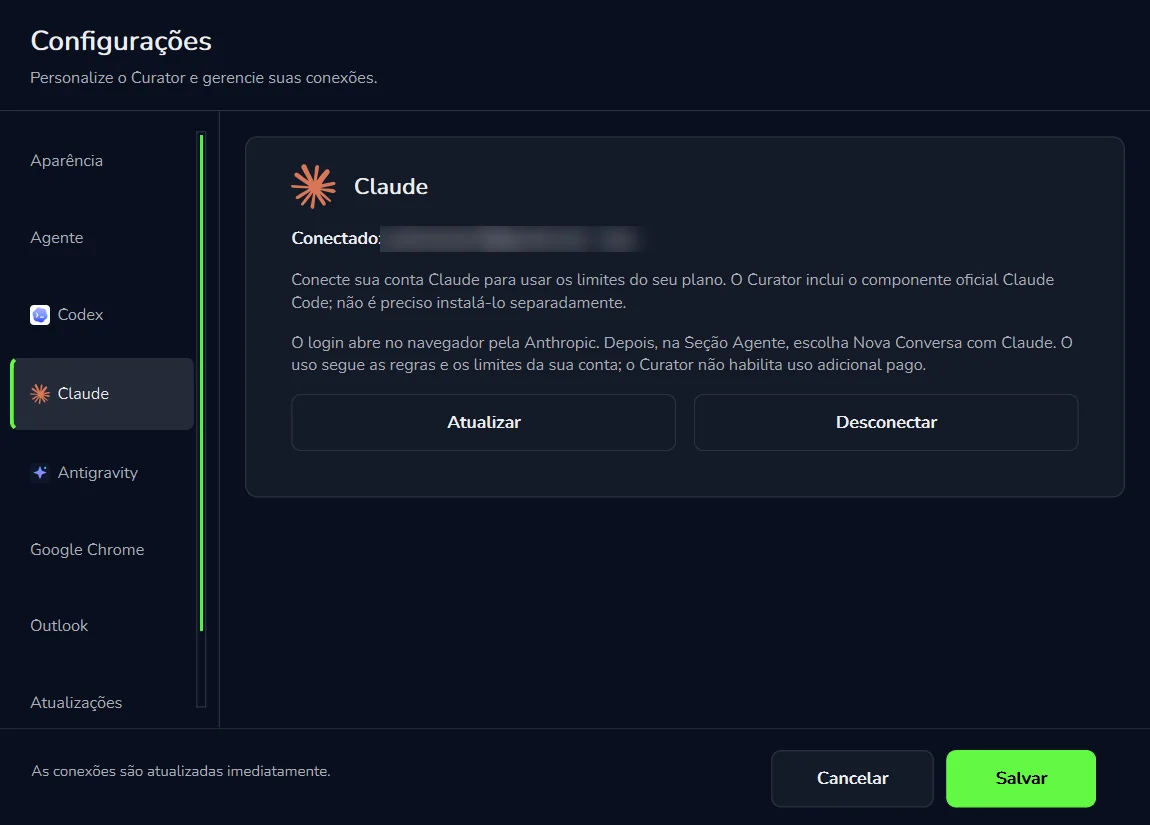
Open “Configurações” (Settings)In Curator's menu bar, click “Configurações”. The “Configurações” window opens, with the line “Personalize o Curator e gerencie suas conexões.” (customize Curator and manage your connections).
Pick “Claude”In the list on the left, click “Claude”, between “Codex” and “Antigravity”.
Sign in with your Claude accountSign-in opens in your browser, on an Anthropic page. Use the same account as the plan you pay for.
Check the connectionBack in Curator, the screen shows “Conectado:” (connected) with your account and plan (for example, “max”), plus the “Atualizar” (refresh) and “Desconectar” (disconnect) buttons. The footer notes: “As conexões são atualizadas imediatamente.” (connections update right away).
Start a conversation with ClaudeIn the “Agente” tab, choose “Nova conversa” with Claude. The conversation gets the “Claude” badge in the “Conversas” (conversations) column, and the “Custo —” chip appears above the message box.
Pick Claude Opus 5.5In the Claude conversation, open the model picker, which starts on “default” (your account's default model), and choose Opus 5.5. The conversation now runs on Anthropic's flagship model, within your plan's limits.
“Configurações” → “Claude”. The connected account appears next to “Conectado:” (blurred here).
What's already included
Curator includes Anthropic's official Claude Code component. There's no need to install it separately: once the account is connected, just start the conversation. In the Curador's engine settings, this option is called “Claude Code”.
Your plan's rules apply here
Usage follows your Claude account's rules and limits. Curator does not turn on paid extra usage: it never switches on any extra charges on your account. If you reach your plan's limit, you can start the next conversation on another engine.
Run the agent on Claude Opus 5.5:
in a conversation with Claude, open the model selector, which shows “default”, and pick Opus 5.5. It's Anthropic's flagship model, within the plan you already pay for.
Codex
If you use ChatGPT with Codex, connect that account. Curator's agent shares your account's Codex limits, with no per-token billing: the conversation shows “Custo —”, and the settings screen shows how much is still available and when it renews.
Where to connect“Configurações” → “Codex”
How you payThrough your account's Codex limits
In the conversation“Codex” badge and “Custo —”
In the Curador“Codex” under “Executar com”
How to connect
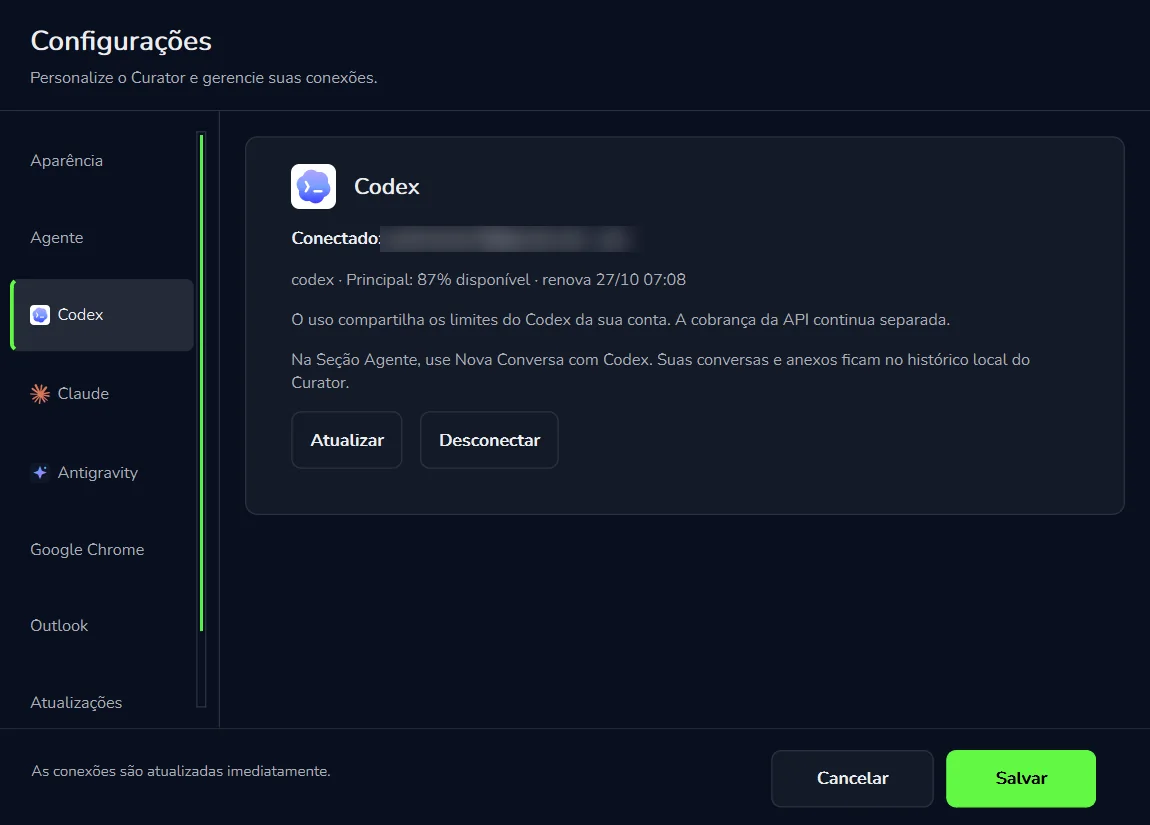
Open “Configurações” → “Codex”In the list on the left, “Codex” comes right after “Agente”.
Connect your ChatGPT/Codex accountUse the same account you already use Codex with.
Check the connection and the limitThe screen shows “Conectado:” with your account and plan (for example, “pro”), and a line like “codex · Principal: 87% disponível · renova 27/10 07:08” (main: 87% available, renews 27/10 07:08).
Start a conversation with CodexIn the “Agente” tab, use “Nova conversa” with Codex. The conversation gets the “Codex” badge.
“Principal: 87% disponível”: how much of your account's main Codex limit is still left.
“renova 27/10 07:08”: the day and time that limit renews.
The limit is shared: what the agent uses in Curator counts against the same Codex limit on your account.
What stays separate
API billing stays separate. If you also have an OpenAI API key, that's a different thing: it's billed per token, apart from your Codex limit.
Your conversations stay with you. Conversations and attachments are kept in Curator's local history, on this computer.
Antigravity
Antigravity is the third account you can connect, from Google, alongside Claude and Codex. The connection is under “Configurações” → “Antigravity”, and it also appears as an option in the Curador's engine settings, under “Executar com”.
Where to connect“Configurações” → “Antigravity”
In the Curador“Antigravity” under “Executar com”
For limits and billing, this guide currently covers Claude, Codex and API keys.
API key
Want a specific model, or would you rather pay only for what you use? Use your own API key. You pay per token, straight to the provider, on your account with them. The key stays on this computer only: PYE Tech never receives it.
How you payPer token, straight to the provider
Where the key livesOn this computer only
In the conversationNo engine badge in the conversation list
In the Curador“Chave de API” under “Executar com”, plus the model
The 9 providers
OpenAI
Anthropic
Google (Gemini)
xAI
DeepSeek
Qwen
Moonshot (Kimi)
Z.AI
CompactifAI
Some of the models you'll see in Curator's screens: DeepSeek V4 Flash and V4 Pro, Qwen 3.7 Flash, Qwen 3.7 Plus, Qwen 3.8 Flash, GPT-5.4 mini, GPT-5.4 pro, Gemini Pro Latest, Gemini 4 Argon and Kimi K3.
Anthropic by key, or Claude through your account?
They're two different paths. With an Anthropic API key, every token is billed by Anthropic. With your Claude account connected under “Configurações” → “Claude”, usage comes out of your plan's limits, with “Custo —”.
The default model
The “Modelo padrão do Chat IA” (default AI chat model) is the one used whenever you don't pick another engine, including in the Curador. To set it:
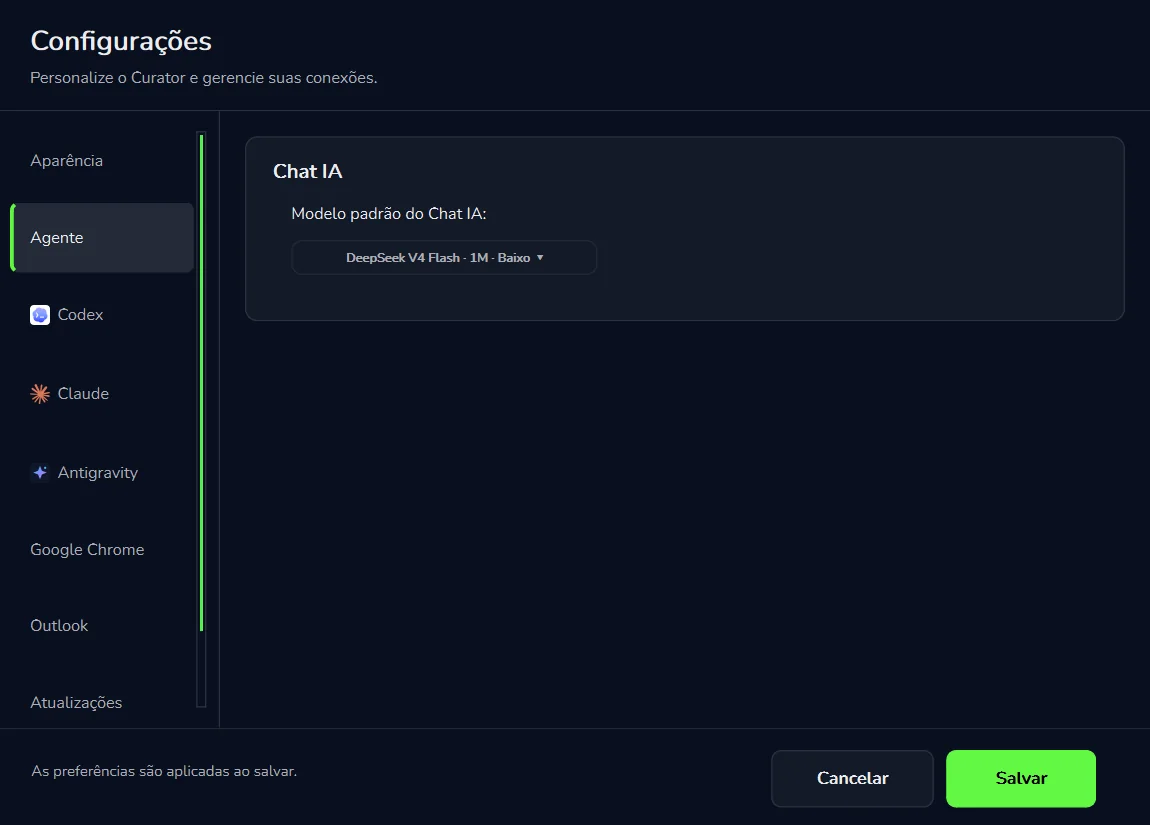
Open “Configurações” → “Agente”The section shows the “Chat IA” (AI chat) card.
Pick the modelUnder “Modelo padrão do Chat IA”, pick the model from the list. It shows with its name and options, as in “DeepSeek V4 Flash · 1M · Baixo”.
Click “Salvar” (Save)In this section, “As preferências são aplicadas ao salvar.” (preferences apply when you save).
“Configurações” → “Agente”. The model chosen here applies whenever you don't pick another engine.
New models come with a heads-up:
when new models arrive, the “Notificações” (notifications) bell shows cards like “15 novos modelos no Chat” (15 new models in Chat), with a “Conhecer modelo” (meet the model) button. Before switching an interpreter's model, compare the candidates in the Benchmark (“Otimização” menu) on the same cases, and keep the best cost and accuracy. More in Notifications.
Where to pick the engine
You pick the engine in two places: in the conversation in the “Agente” tab, and in each automation's Curador window. When you don't pick one, the default model applies.
In the “Agente” tab: one conversation, one engine
Start the conversation on the right engineChoose “Nova conversa” with Claude or with Codex.
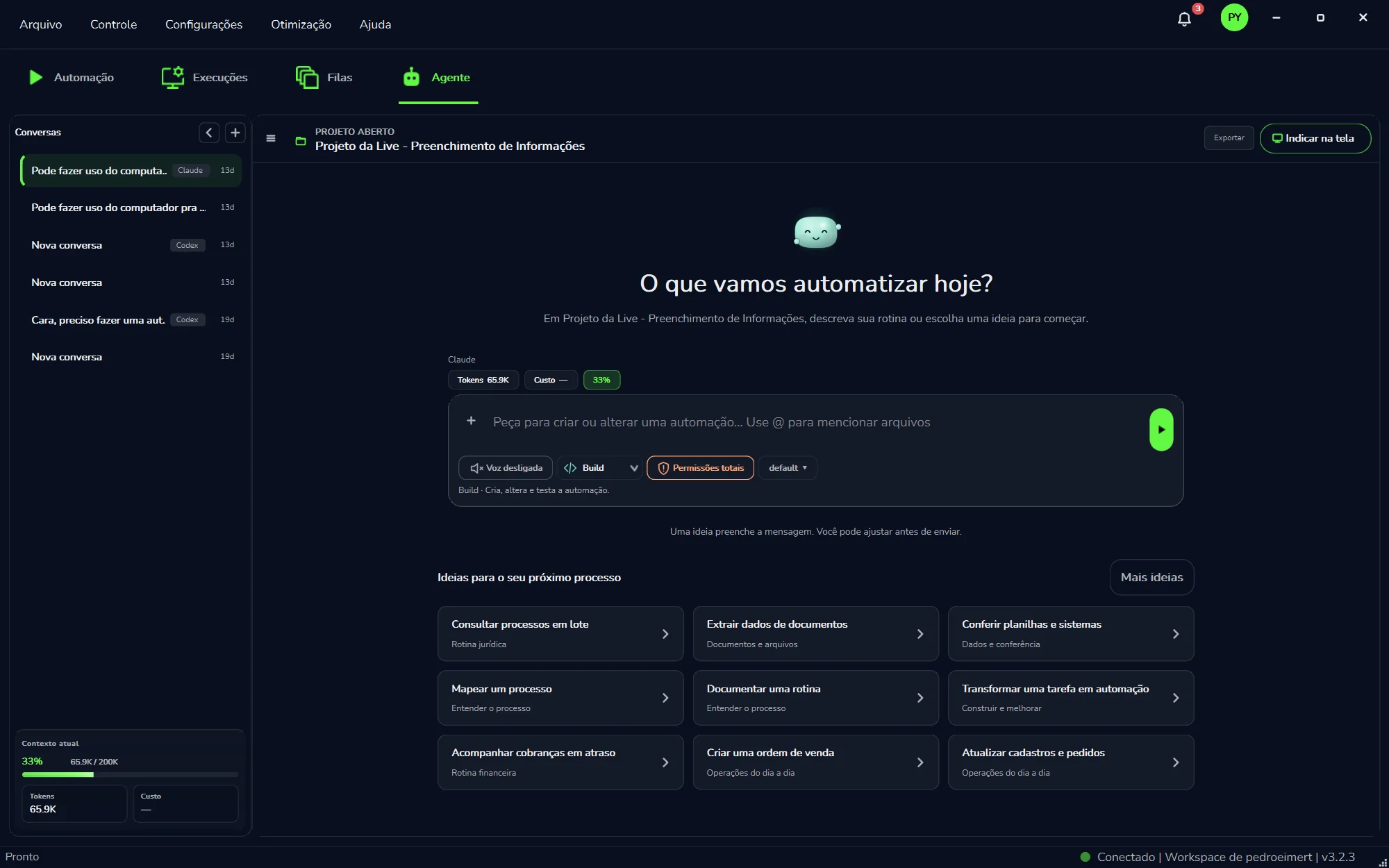
Check the badgeIn the “Conversas” column, each conversation shows its engine: “Claude” or “Codex”. A conversation with no badge runs on an API key.
See the engine above the message boxAbove the message box you'll see the engine's name and the “Tokens”, “Custo” (cost) and context-percentage chips.
Understand “default”With Claude or Codex, the model selector shows “default”: the agent uses your account's default model.
Pick Opus 5.5To run on Claude Opus 5.5, open the model selector, which shows “default”, and choose Opus 5.5.
In the “Conversas” column, each conversation shows its engine badge. Above the message box: “Claude”, “Tokens 65.9K”, “Custo —” and 33%.
In the Curador: “Motor do Curador”
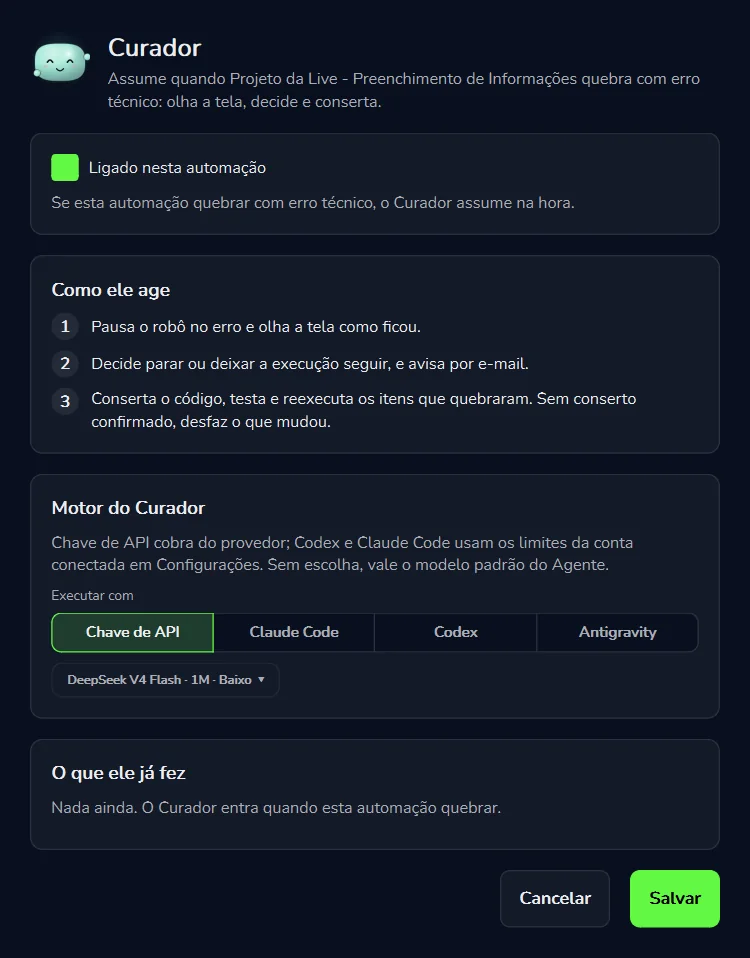
In an automation's Curador window, the “Motor do Curador” (Curador engine) card sums up the rule: API keys are billed by the provider; Codex and Claude Code use the limits of the account connected in “Configurações”. Without a choice, the Agent's default model applies.
Open the automation's “Curador” windowIt's the same window where you turn the Curador on (see Turn it on per automation).
Choose under “Executar com”“Chave de API” (API key), “Claude Code”, “Codex” or “Antigravity”.
Check the modelRight below is the model selector, such as “DeepSeek V4 Flash · 1M · Baixo”.
Click “Salvar” (Save)
Fixes on your plan:
for the Curador to fix robots on your subscription, choose “Claude Code” or “Codex”. The account must be connected in “Configurações”.
“Motor do Curador” → “Executar com” (run with).
When you don't choose
The “Modelo padrão do Chat IA” under “Configurações” → “Agente” applies (see The default model). The Curador follows the same rule: without a choice, the Agent's default model applies.
Limits and cost
There are two ways to pay for the agent's AI, and the screen shows which one is in use.
Through your plan
Claude · Codex
Usage counts against the subscription you already pay for.
The conversation shows “Custo —”: no per-token billing.
For Codex, “Configurações” → “Codex” shows the “% disponível” (available) and when it renews.
For Claude, your account's rules and limits apply, and Curator does not turn on paid extra usage.
Per token
API key
Every token is billed by the provider, on your account with them.
You pick the exact model, from 9 providers.
The “Uso de IA” (AI usage) window shows the calculated cost per model.
“Custo —” doesn't mean free
The dash means there's no per-token billing in that conversation: usage comes out of your Claude or Codex plan's limits. Tokens are still counted, and the screen shows how much the conversation has used:
Contexto atual
33%65.9K / 200K
Tokens65.9K
Custo—
Claude
Tokens 65.9KCusto —33%
Peça para criar ou alterar uma automação...
The “Agente” tab chips, with the values from the screenshot above.
“Claude”This conversation's engine.
“Tokens 65.9K”How much the conversation has used.
“Custo —”No per-token billing: usage comes out of your plan.
“33%” · “65.9K / 200K”How much of the conversation's context is already in use, in the “Contexto atual” (current context) panel.
The “Uso de IA” window
To see where AI was used, open the “Uso de IA” (AI usage) window, made to help you understand where AI was used, check the measurements and follow the calculated cost. It has the “Período” (period) and “Todas as origens” (all sources) filters and four cards:
“Custo calculado”The calculated cost of usage, in US dollars.
“Tokens”The total tokens used.
“Entrada”Input: what was sent to the model, including cache reads.
“Saída”Output: what the model returned, including reasoning.
The numbers come in two tabs, “Por modelo” (by model) and “Histórico” (history). Under “Por modelo”, the columns are Provider, Model/Source, Input, Output, Cost and Tokens. The “Exportar CSV” button exports the measurements to a CSV file.
“Valores calculados, não uma fatura.” (calculated values, not an invoice)
The window says so itself: the numbers are calculated by Curator. What counts for payment is the provider's bill (API key) or your plan (Claude, Codex). More in AI usage.
Which one to pick
Engine
How it connects
How you pay
Where it shows
Best for
Claude
“Configurações” → “Claude”; sign-in in your browser, through Anthropic
Your Claude plan's limits (“Custo —”)
“Agente” tab (“Claude” badge) and Curador (“Claude Code”)
People who already pay for Claude and want the agent on Claude Opus 5.5
Codex
“Configurações” → “Codex”, with your ChatGPT/Codex account
Your account's Codex limits (“Custo —”); the API is billed separately
“Agente” tab (“Codex” badge) and Curador (“Codex”)
People who already use ChatGPT with Codex
Antigravity
“Configurações” → “Antigravity”, Google account
Not covered in this guide
Curador (“Antigravity” under “Executar com”). In the “Agente” tab, not covered in this guide yet
People who use Antigravity and want it running the Curador
API key
Your own key from one of the 9 providers, kept on this computer only
Per token, straight to the provider
“Agente” tab (conversation with no badge), Curador (“Chave de API”) and “Modelo padrão do Chat IA”
A specific model, comparing models in Benchmark, paying only for what you use
Our recommendation
Already pay for Claude?Start with Claude
Connect your plan (for example, Max) and run the agent on Claude Opus 5.5 within its limits, with “Custo —”.
Connect Claude ↑
Already use ChatGPT with Codex?Connect Codex
The agent shares your account's Codex limits (for example, on the Pro plan), and you can follow the “% disponível” (available).
Connect Codex ↑
Need a specific model?Use an API key
It's the way to pick the exact model, for example the one that won an interpreter's Benchmark, paying per token.
Use a key ↑
You can mix them: Claude or Codex to chat and build automations, and an API key when you need a specific model, as in Interpreters.
Common problems
The conversation doesn't show “Custo —”.
Check the conversation's badge in the “Conversas” column. With no badge, it runs on an API key, billed per token. To use your plan, start a “Nova conversa” with Claude or Codex.
I'm not sure the account is connected.
Open “Configurações” → “Claude” (or “Codex”). When connected, the screen shows “Conectado:” with your account and the “Atualizar” and “Desconectar” buttons.
I went to connect Claude and nothing changed in Curator.
Sign-in opens in your browser, on an Anthropic page. Look for the browser window, sign in with your plan's account and come back to Curator.
Do I need to install Claude Code?
No. Curator includes the official Claude Code component; there's no need to install it separately.
Codex is close to its limit.
Check the “% disponível” and the renewal time under “Configurações” → “Codex”. Meanwhile, start the next conversation on another engine, such as Claude or an API key.
The Curador used a model I didn't choose.
Without a choice, the Agent's default model applies. Pick the engine under “Motor do Curador” → “Executar com” and click “Salvar”, or change the “Modelo padrão do Chat IA” under “Configurações” → “Agente”.
I have a Codex account and an OpenAI key. Does one affect the other?
Not on billing: Codex uses your account's limits, and API billing stays separate.
The cost in “Uso de IA” doesn't match my bill.
The window itself says the values are calculated, not an invoice. The provider's bill is the one that counts.
I want to switch the connected account.
Under “Configurações” → “Claude” or “Codex”, click “Desconectar” and connect the other account.
Can PYE Tech see my API key?
No. AI provider keys stay on this computer only, and PYE Tech never receives them.