The Curador: when the robot breaks, it fixes it New in 3.2
A robot that runs every day will break sooner or later: a website changes, a button moves, and the run stops halfway. The Curador, Curator's self-healing agent, handles that for you. Turn it on for an automation and, if that automation breaks with a technical error, the Curador takes over at once: it pauses the robot, looks at the screen, sends an e-mail alert, fixes the code, tests the fix and re-runs the items that broke. If it can't confirm the fix, it undoes what it changed.
The Curador is Curator's AI agent on call for one automation. It does nothing while things run smoothly, and steps in when the automation breaks with a technical error. Its window sums up the job in one sentence:
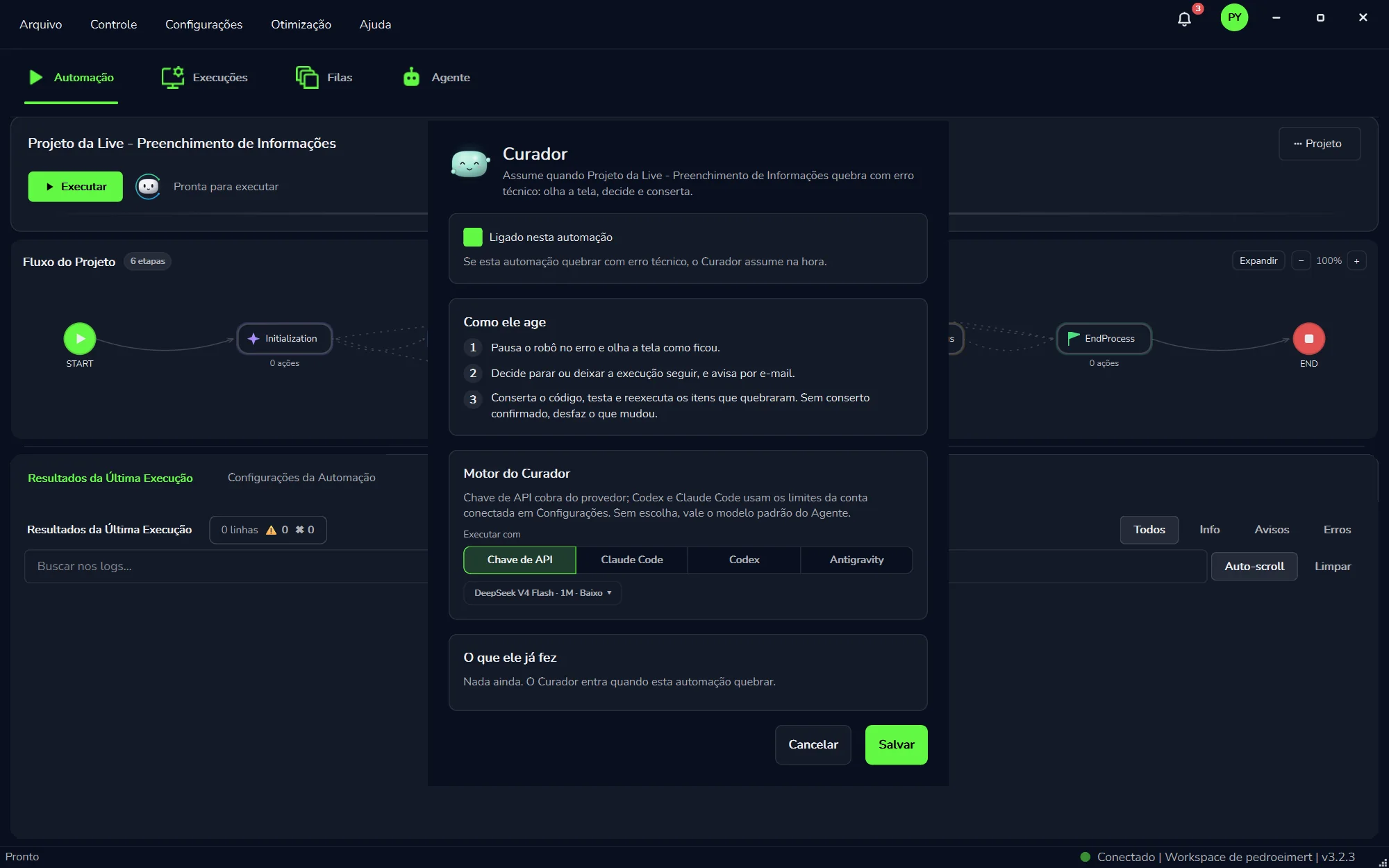
“Assume quando <automation name> quebra com erro técnico: olha a tela, decide e conserta.”Takes over when <automation name> breaks with a technical error: it looks at the screen, decides and fixes.
Without the Curador, when an automation breaks, someone has to notice the error, read the logs and ask the Agent for a fix. With the Curador on, that work starts by itself, the moment the error happens, even if nobody is watching the screen.
The “Curador” window open over the project, in the “Automação” (Automation) tab. Its title names the automation it looks after.
Agent and Curador: who does what
Both are the same Curator AI agent, in different roles. With the Agent, you build. The Curador looks after what you built.
Topic
Agent
Curador
When it works
When you ask, in the “Agente” (Agent) tab.
On its own, when the automation breaks with a technical error.
What it does
Builds, changes and tests the automation with you.
Looks at the screen, decides, fixes the code, tests it and re-runs the items that broke.
Applies to
The open project (its name shows under “PROJETO ABERTO”).
One automation (“Ligado nesta automação”, on for this automation).
AI engine
The conversation's: “Nova conversa” (new conversation) with Claude or Codex, or the default model.
The one under “Motor do Curador” → “Executar com” (run with).
How you follow it
In the conversation itself.
Through the e-mail alert and “O que ele já fez” (what it has done).
Curador or Curator?Curator is the app. The Curador is the Curator feature that fixes broken automations. It keeps its Portuguese name, the one you see in the app.
Turn it on per automation
The Curador is switched on for each automation, one at a time. Turning it on for one doesn't turn it on for the others: each automation has its own “Curador” window, with its name in the title.
Open the automationIn the “Automação” tab, click “Abrir automação” (open automation) or pick one under “Abertos recentemente” (recently opened).
Open its “Curador” windowThe window opens over the open project. Check the automation's name in the title: “Assume quando <name> quebra com erro técnico…”.
Tick “Ligado nesta automação”The box turns green. Right below, the window confirms it: “Se esta automação quebrar com erro técnico, o Curador assume na hora.” (if this automation breaks with a technical error, the Curador takes over right away).
Pick the engineUnder “Motor do Curador” → “Executar com”. If you don't choose, the Agent's default model applies. See Curador engine.
Click “Salvar” (Save)Done: the Curador is now on call for this automation. To back out without changing anything, click “Cancelar” (Cancel).
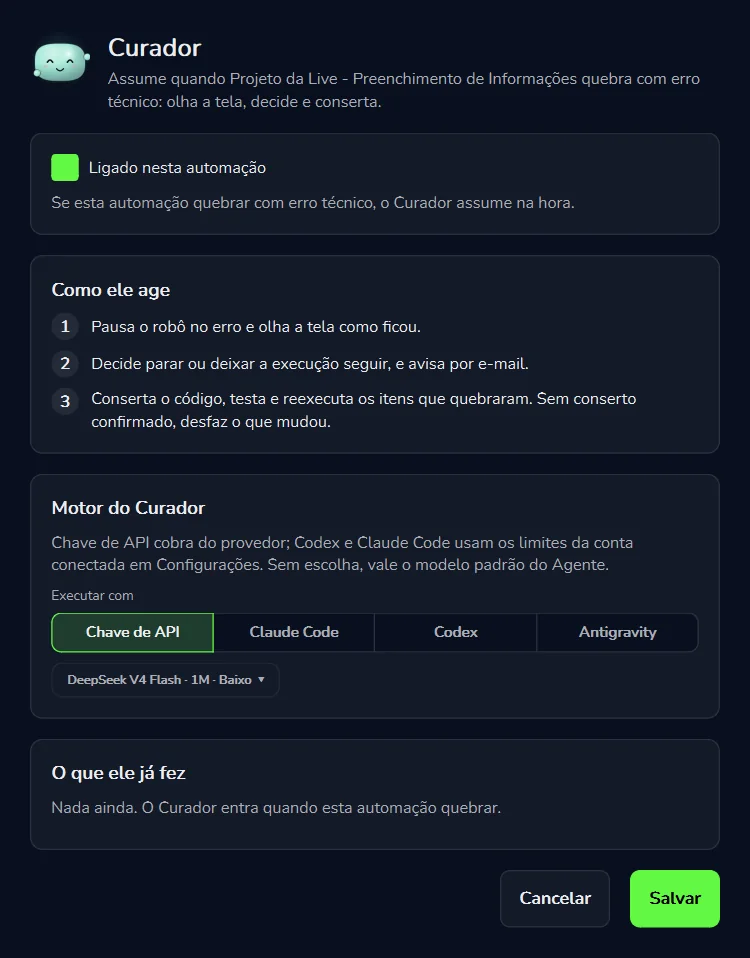
Top to bottom: the switch, “Como ele age” (how it acts), “Motor do Curador”, “O que ele já fez” and the buttons.
To turn it off
In the same window, untick “Ligado nesta automação” and click “Salvar”. If the automation breaks after that, the Curador stays out.
How it acts
When the automation breaks with a technical error, the Curador follows the three steps its window lists under “Como ele age” (how it acts). The scene below shows the order; each step is explained after it.
How the Curador actsCurador on
Your automation
Ready to run
Item 1Waiting
Item 2Waiting
Item 3Waiting
Automation codeoriginal
Curador
On for this automation
1
Pauses and looks at the screenthe screen at the error
2
Decides: stop or carry one-mail sent
3
Fixes, tests, re-runstesting the fix
Hover to pause. Click to watch again.
It pauses the robot at the error and looks at the screen as it was leftThe robot stops where it broke. Before touching anything, the Curador looks at the screen exactly as it was at the moment of the error, the way you would if you were sitting at the computer.
It decides whether to stop or let the run carry on, and sends an e-mail alertThe Curador decides whether the run stops or carries on, and sends an e-mail alert. That way the error doesn't go unnoticed, even when nobody is at the computer. See E-mail alerts.
It fixes the code, tests it and re-runs the items that brokeIt corrects the automation's code, tests the correction and runs the broken items again. Without a confirmed fix, it undoes what it changed, and the code goes back to how it was. See Where it stops.
What this changes for you
Nobody needs to be watchingThe Curador takes over the moment the error happens, not when someone notices.
The error doesn't go unnoticedThe Curador sends an e-mail alert.
The work is picked up againOnce the fix is tested, the items that broke run again.
No half-made fixesWithout a confirmed fix, it undoes its changes to the code.
Curador engine
The fix is done by an AI engine. The Curador runs on the same four engines as the agent in the “Agente” tab, and you choose one per automation, in the “Motor do Curador” (Curador engine) card. The rule is written in the window itself:
“Chave de API cobra do provedor; Codex e Claude Code usam os limites da conta conectada em Configurações. Sem escolha, vale o modelo padrão do Agente.”
An API key is billed by the provider; Codex and Claude Code use the limits of the account connected in Settings. With no choice made, the Agent's default model applies.
The “Motor do Curador” card. The chosen option gets a green outline.
API key
Per token, paid to the provider
The provider bills per token. You pick the exact model in the selector right below. The key stays on this computer only.
Uses your Claude account, connected under “Configurações” → “Claude”. Put Claude Opus 5.5, Anthropic's flagship model, to work fixing your robots within the plan you already pay for.
Connect the account first, if you'll use your plan“Claude Code” and “Codex” use the account connected under “Configurações” → “Claude” or “Codex”.
Under “Executar com”, click the engine“Chave de API” (API key), “Claude Code”, “Codex” or “Antigravity”. The chosen one gets a green outline.
Check the modelRight below is the model selector. In the screenshot, with “Chave de API”, it shows “DeepSeek V4 Flash · 1M · Baixo”.
Click “Salvar” (Save)
When you don't choose
The Agent's default model applies: the “Modelo padrão do Chat IA” (default AI chat model) under “Configurações” → “Agente”. See Settings → Agent.
Your plan builds and fixes:
if you already pay for Claude, or for ChatGPT with Codex, the same plan builds robots in the “Agente” tab and fixes them through the Curador, with no extra per-token charge. That's why conversations in the “Agente” tab show “Custo —” (cost —). More in Limits and cost.
The Curador's choice is separate from your conversation in the “Agente” tab. You can chat on Codex and leave the Curador on “Claude Code”, for example. With “Chave de API”, every token is billed by the provider; to keep track of where AI was used and the calculated cost, open the “Uso de IA” (AI usage) window (see AI usage).
What it has done
The window's last card, “O que ele já fez” (what it has done), is the Curador's history for this automation. Until it has had to step in, the card reads: “Nada ainda. O Curador entra quando esta automação quebrar.” (nothing yet; the Curador steps in when this automation breaks). Once it has acted, this is where you check what it did.
“O que ele já fez” on an automation where the Curador hasn't had to act yet.
Where else to check
“O que ele já fez”In the automation's “Curador” window: what the Curador did.
“Resultados da Última Execução”In the “Automação” tab, below the flow (last run results). Use the “Erros” filter and the “Buscar nos logs...” search. See Results and logs.
“Execuções” tabUnder “Lista de Execuções” (run list): date, origin (Manual or Gatilho, i.e. trigger), status, machine and report. See Run list.
The e-mail alertSent when the Curador takes over. See E-mail alerts.
Same automation keeps showing up?
If the Curador keeps stepping in on the same automation, take a closer look. In the “Agente” tab, in “Build” mode, ask it to review the step that keeps breaking. The Agent shows what it will change before saving.
E-mail alerts
In the second step, when it decides whether the run stops or carries on, the Curador sends an e-mail alert. That way, whoever gets the alert learns that the automation broke and that the Curador took over, even when they're away from the computer.
Got the alert? Here's what to do
Open the automation's “Curador” windowUnder “O que ele já fez”, see what it did.
Read the errorIn “Resultados da Última Execução”, click “Erros” (errors) to see only what failed.
Check the runIn the “Execuções” (runs) tab, the run is listed with its status, machine and report.
No confirmed fix? Take the error to the AgentThe Curador undid its changes, and the code is as it was. In the “Agente” tab, in “Build” mode, describe the error and ask for the fix. See Review, approve and undo.
Made for when nobody is watching:
the alert matters most for automations that run on their own, started by a trigger on a schedule or by new items in a queue.
Where it stops
The Curador is built for one kind of problem: the technical error. Knowing what falls outside that helps you use it well.
The Curador takes over
On an automation where “Ligado nesta automação” is ticked.
When it breaks with a technical error.
To fix the code, test it and re-run the items that broke.
Not the Curador's job
Automations where it is switched off.
Business-rule failures: the case fails a rule, such as an invalid tax ID or an order that was already cancelled. Changing the code won't fix that.
Changing what the automation does, such as new steps or rules: you ask the Agent for that.
Leaving a fix in the code when it wasn't confirmed.
No confirmed fix? The code goes back to how it was
The Curador only keeps a change to the code when the fix is confirmed. If it isn't, it undoes what it changed, and the automation's code stays as it was before the error. The e-mail alert already went out in the second step. The next step is to go over the error with the Agent.
No confirmed fixCurador on
Your automation
Ready to run
Item 1Waiting
Item 2Waiting
Item 3Waiting
Automation codeoriginal
Curador
On for this automation
1
Pauses and looks at the screenthe screen at the error
2
Decides: stop or carry one-mail sent
3
Fixes, tests, re-runstesting the fix
Hover to pause. Click to watch again.
Technical error or business rule?
The difference is the cause. A technical error is a problem with the robot or its environment: the screen changed, a button wasn't found, the system didn't respond. That's the kind the Curador handles. A business-rule failure is a problem with the case itself: it fails a rule, such as an invalid tax ID. Changing the code won't help; the fix is to correct the data or handle the case by hand. More in Two kinds of failure.
In the REFRAMEWORK templates:
the two kinds are kept apart in the code from the start, as BusinessRuleException (business rule) and SystemException (technical error). See REFRAMEWORK templates.
Good practices
Turn it on for automations that run unattendedAutomations started by a trigger, on a schedule or by new items in a queue, run when nobody is watching. That's where the Curador helps most.
Choose the engine on purpose“Claude Code” or “Codex” to fix within your plan. “Chave de API” when you want a specific model. With no choice, the Agent's default model applies.
Test before leaving it aloneRun it with “Executar” (run) and use snippet testing, which uses the same Python, adapter and connection as “Executar”. The Curador is for the unexpected, not for finishing the automation.
Look at the history now and thenRead “O que ele já fez”. If it keeps stepping in on the same automation, ask the Agent to review the step that breaks.
Pair it with QueuesIn a queue, each case is an item with a status. When the error is technical, the Curador re-runs the items that broke. Business failures wait for someone to fix the data.
Keep the account connectedWith “Claude Code” or “Codex”, the Curador relies on the account connected in “Configurações”. For Codex, the screen shows how much is still available and when it renews.
Quick questions
Do I have to turn the Curador on for each automation?
Yes. It's switched on per automation, with “Ligado nesta automação”.
Does the fix come out of my subscription?
With “Claude Code” or “Codex”, it comes out of the connected account's limits, with no per-token billing. With “Chave de API”, the provider bills per token.
Which engine does it use if I don't choose?
The Agent's default model: the “Modelo padrão do Chat IA” under “Configurações” → “Agente”.
What if the fix doesn't work?
Without a confirmed fix, it undoes what it changed. The e-mail alert has already gone out in the second step.