The “Configurações” (Settings) window sums itself up in its subtitle: “Personalize o Curator e gerencie suas conexões” (customize Curator and manage your connections). It's where you connect your Claude account to run the agent on Claude Opus 5.5 within your plan's limits, hook up Codex, Google Chrome and Outlook, pick the default model and check for updates.
This page also covers the “Equipe” (Team) screen, for working with other people in the same workspace, the “Uso de IA” (AI usage) window, for seeing where AI was used and what it cost by Curator's calculation, and what happens to your data.
Click “Configurações”
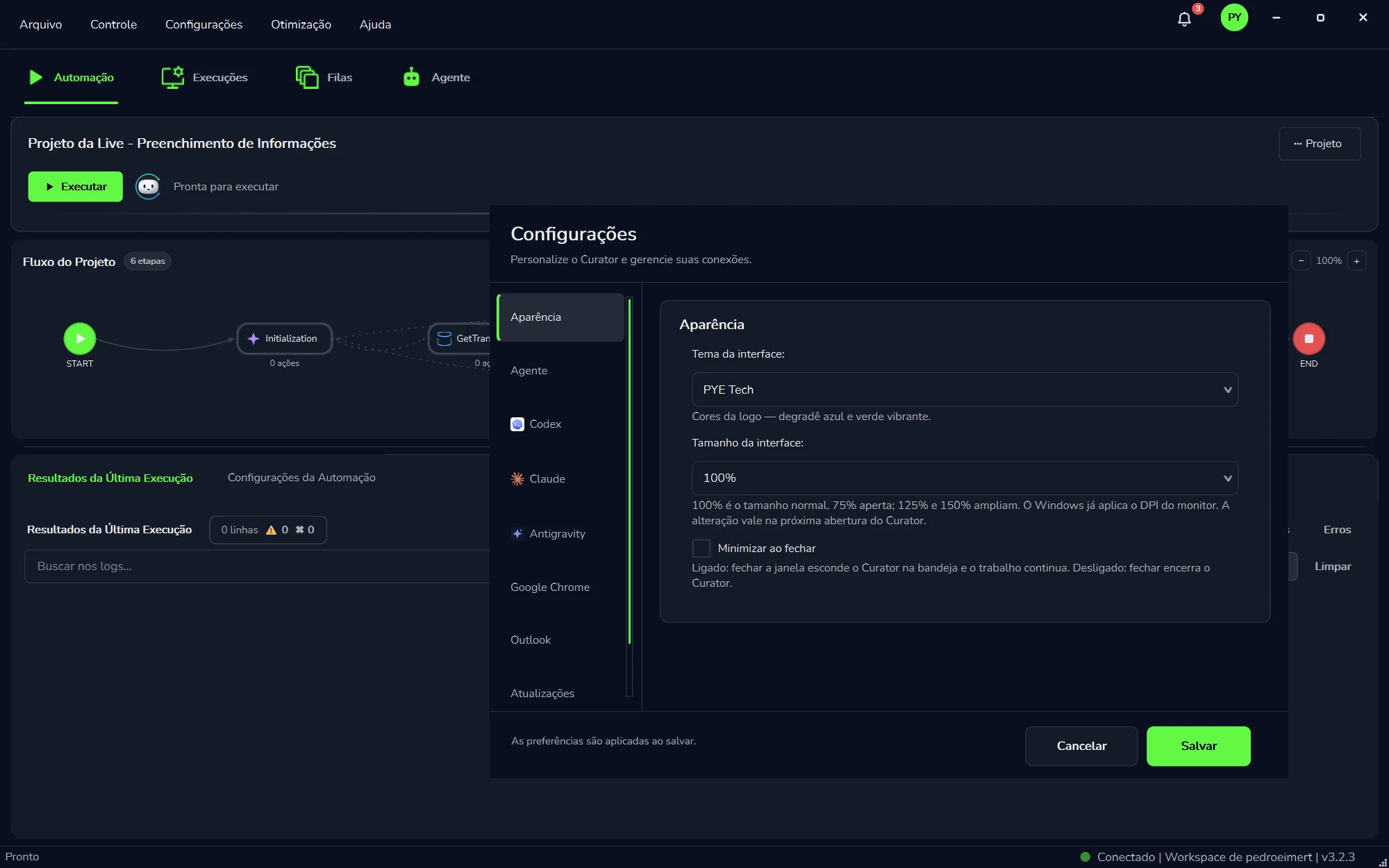
It's in the menu bar at the top of Curator: “Arquivo” (File), “Controle” (Control), “Configurações” (Settings), “Otimização” (Optimization) and “Ajuda” (Help). The “Configurações” window opens on top of the app.
Pick a section on the left
There are eight, in this order: “Aparência” (Appearance), “Agente” (Agent), “Codex”, “Claude”, “Antigravity”, “Google Chrome”, “Outlook” and “Atualizações” (Updates). The open section is highlighted with a green bar. If the list doesn't fit on screen, scroll down to see the last ones.
Make the change and read the footer
At the bottom are the “Cancelar” (Cancel) and “Salvar” (Save) buttons, next to a line that says when your change takes effect. Both possible lines are explained just below.
The window opens on top of Curator. At the top, “Configurações” in the menu bar; on the left, the eight sections; at the bottom, “Cancelar” and “Salvar”.
See the installed version and check for a new one.
To save or not to save: the footer tells you
The footer line changes with the open section. It tells you whether your change waits for “Salvar” (Save) or has already taken effect:
As preferências são aplicadas ao salvar.CancelarSalvar
Preferences: click “Salvar”
“The preferences are applied when you save.” Shown on “Aparência”, “Agente” and “Atualizações”. Picked a theme, a size or the default model? The change only applies after “Salvar”.
As conexões são atualizadas imediatamente.CancelarSalvar
Connections: effective right away
“The connections are updated immediately.” Shown on “Codex”, “Claude” and “Google Chrome”. Connecting, refreshing or disconnecting an account takes effect at once, without waiting for “Salvar”.
Appearance
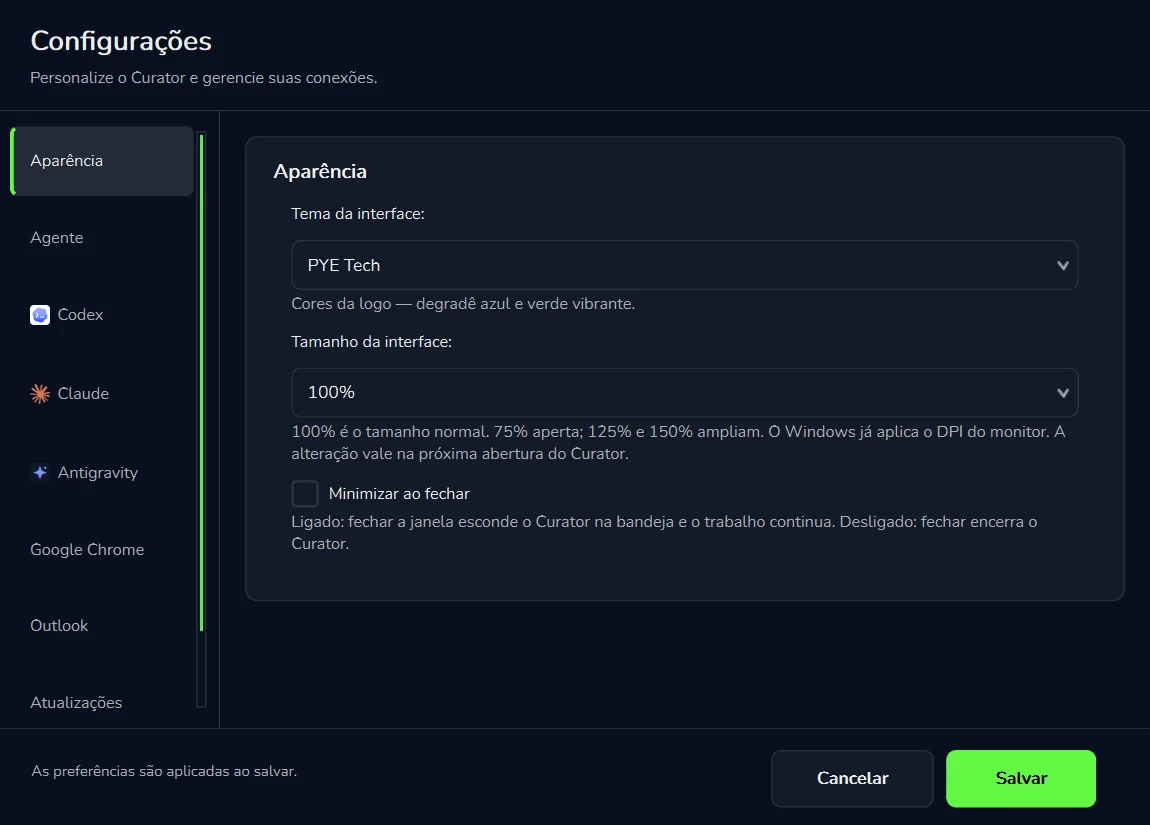
Three settings to make Curator comfortable on your screen and in the way you work. Each one has a line underneath that explains what it does:
Option
What the screen says
When to change it
“Tema da interface”(interface theme)
“PYE Tech”: the logo's colors, a blue gradient and vibrant green.
It's the theme in this manual's screenshots: dark background, green highlights and some buttons with the logo gradient.
“Tamanho da interface”(interface size)
From 75% to 150%. 100% is the normal size; 75% packs things tighter; 125% and 150% make them bigger.
Text too small on a large monitor? Try 125% or 150%. Cramped laptop screen? At 75%, more fits.
“Minimizar ao fechar”(minimize on close)
On: closing the window hides Curator in the system tray and the work keeps going. Off: closing quits Curator.
Turn it on if you leave robots running or use triggers on this computer. That way, closing the window doesn't quit Curator.
Open “Configurações” → “Aparência”, the first section in the list.
Pick the theme and size from the drop-downs, and tick or untick “Minimizar ao fechar”.
Click “Salvar” (Save).
The new size shows up next time you open Curator
The screen notes that Windows already applies the monitor's scaling (DPI) and that the change takes effect the next time Curator opens. After saving, close and reopen Curator to see the new size.
“Configurações” → “Aparência”. The footer reminds you that preferences are applied when you save.
Agent
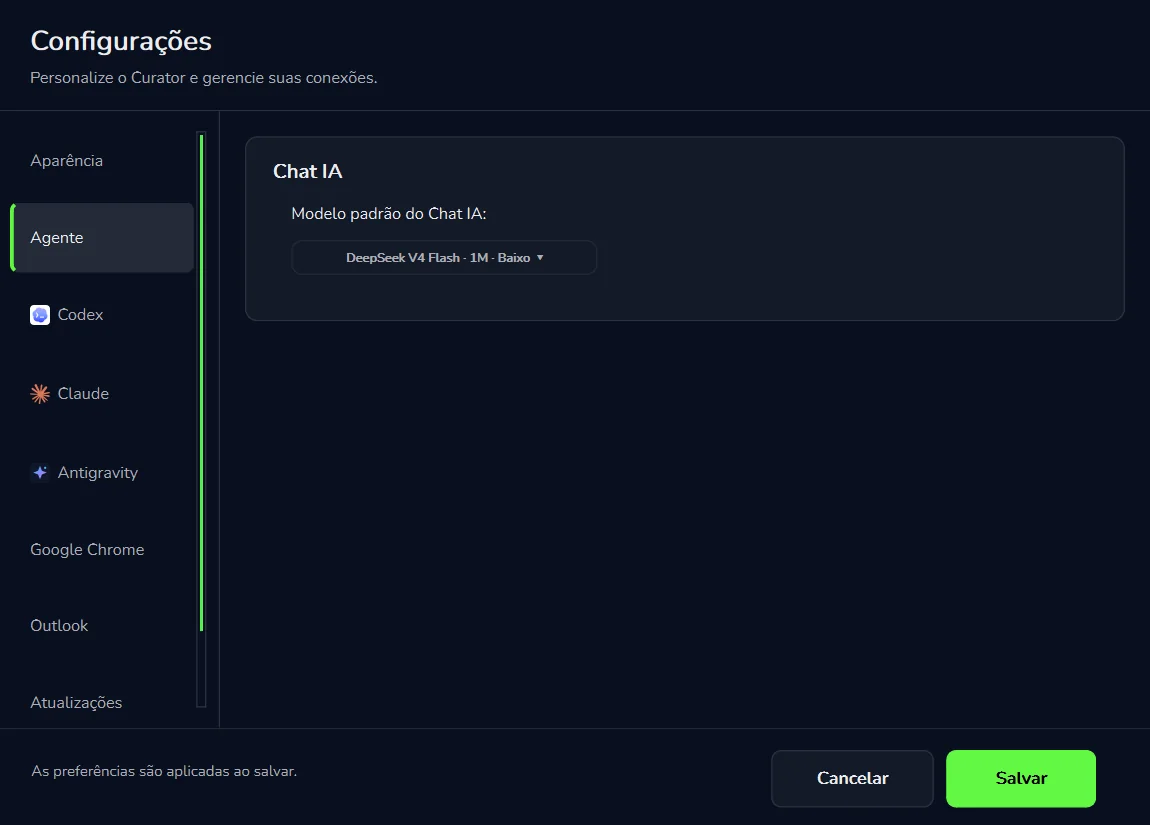
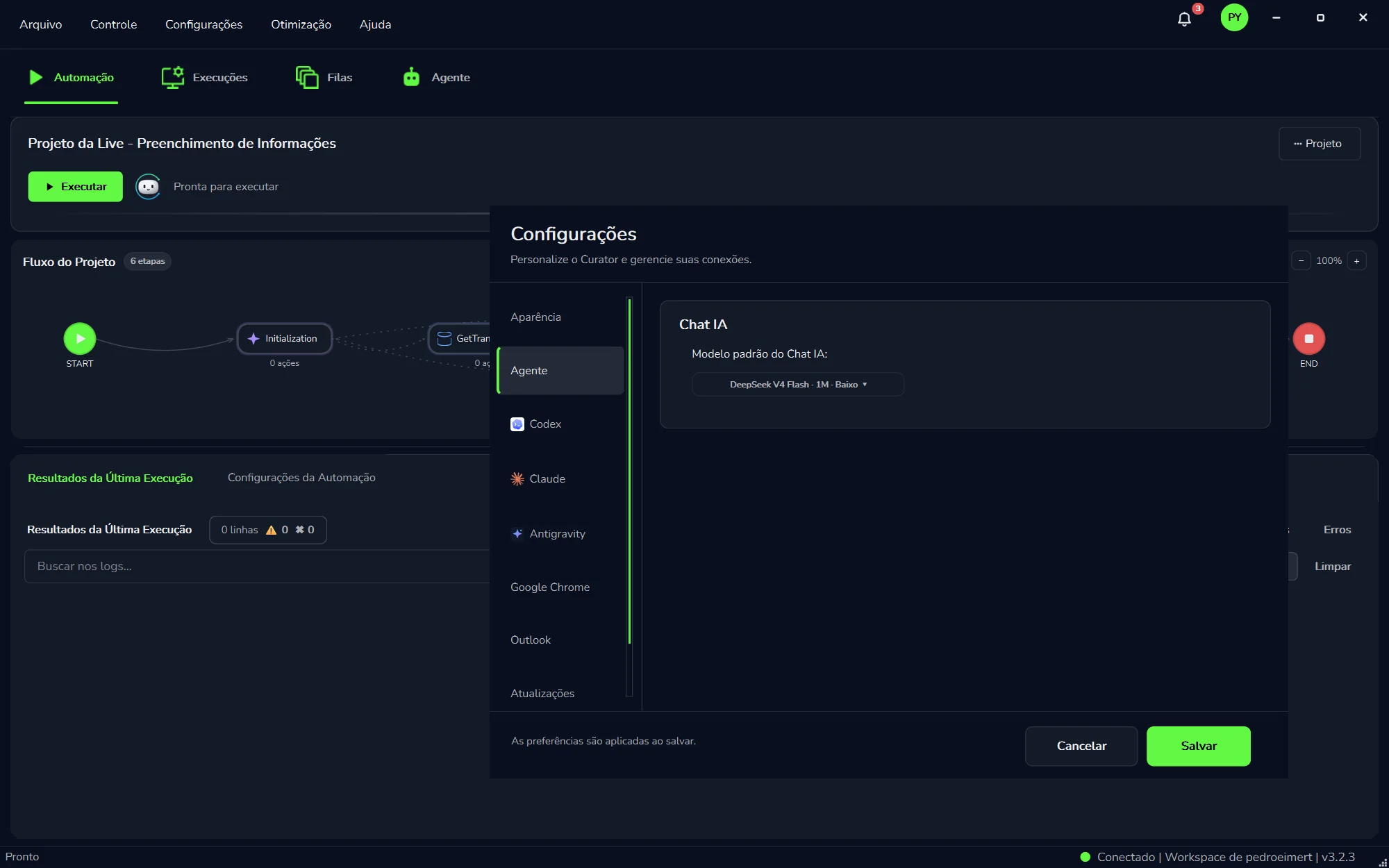
The “Agente” (Agent) section has a single card, “Chat IA” (AI chat), with one important choice: the “Modelo padrão do Chat IA” (default AI chat model). It's the model that does the work when you don't pick another engine: in “Agente” tab conversations that weren't started with Claude or Codex, and in the Curador, Curator's self-healing agent, when its “Motor do Curador” (Curador engine) is left unset.
Open “Configurações” → “Agente”
It's the second section in the list, right below “Aparência”.
Pick the model
Under “Modelo padrão do Chat IA”, open the list and choose. In the screenshot below, the default is “DeepSeek V4 Flash · 1M · Baixo”.
Click “Salvar”
The preferences rule applies here: the choice only takes effect after “Salvar” (Save).
“Configurações” → “Agente”. The model chosen here works whenever you don't pick another engine.
Four engines for the agent
The default model is just the starting point. Curator's agent, in the “Agente” tab and in the Curador, runs on four engines. Three of them are connected in the next sections of this window:
Opus 5.5
Claude
Your Claude plan's limits
Run the agent on Claude Opus 5.5 within the plan you already pay for. The official Claude Code comes with Curator.
Where to pick the engine for each job: in the “Agente” tab, with “Nova conversa” (new conversation) with Claude or with Codex (each conversation shows its engine badge); in the Curador, under “Motor do Curador” → “Executar com” (run with). The full guide is in AI engines.
New models arrive with a heads-up
When new models arrive, the notification bell at the top right tells you, with cards such as “15 novos modelos no Chat” (15 new models in Chat) and a “Conhecer modelo” (meet the model) button. See Notifications.
Codex
If you use ChatGPT with Codex, connect that account and Curator's agent works within the Codex limits you already have. In the conversation, the cost shows as “Custo —” (cost —): there's no per-token billing.
Open “Configurações” → “Codex”
In the list, right below “Agente”.
Connect your ChatGPT/Codex account
Use the same account you already use Codex with.
Check what the screen shows
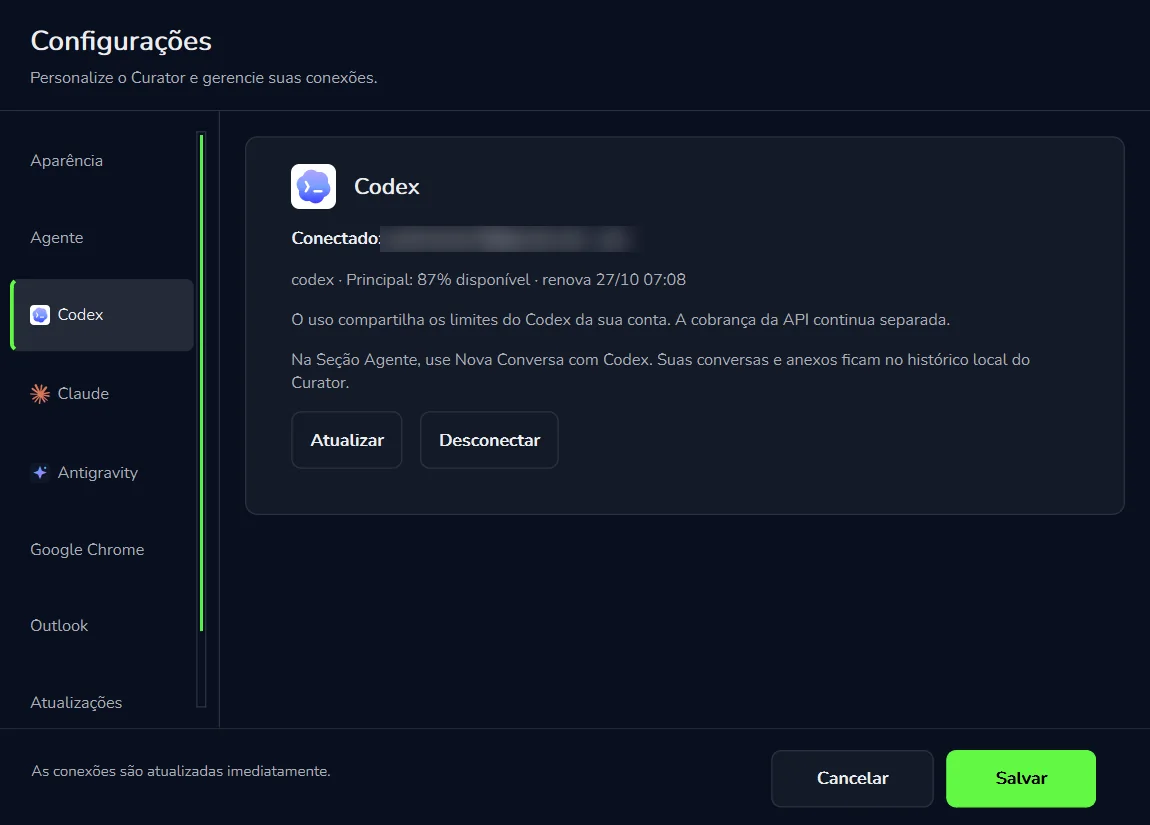
“Conectado:” (connected) with your account and plan (for example, “pro”), the limit line, and the “Atualizar” (refresh) and “Desconectar” (disconnect) buttons.
Chat with Codex
In the “Agente” tab, use “Nova conversa” with Codex. The conversation gets the “Codex” badge and shows “Custo —”.
“Principal: 87% disponível” (main: 87% available): how much of your account's main Codex limit is left.
“renova 27/10 07:08” (renews 27/10 07:08): the day and time that limit renews.
“Configurações” → “Codex”. The connected account appears next to “Conectado:” (blurred here).
What the screen makes clear
Usage shares your account's Codex limits. What the agent uses in Curator counts against the same limit you use outside it.
API billing stays separate. An OpenAI API key, if you have one, is a different thing: it's billed per token, separately.
Your conversations and attachments stay in Curator's local history, on this computer.
The Curador uses this account too. Choose “Codex” under “Motor do Curador” → “Executar com”, and fixes come out of the limits of the account connected here.
To switch accounts, click “Desconectar” (disconnect) and connect the other one. Since it's a connection, it takes effect right away.
Claude
Claude Opus 5.5
Run the agent on Claude Opus 5.5 within your Claude plan's limits
If you already subscribe to Claude, you use that same plan to build and fix robots in Curator. Usage counts against your plan's limits, there's no per-token billing, and the conversation shows “Custo —” (cost —). Opus 5.5 is Anthropic's flagship model.
Cost —Official Claude Code includedAgent and Curador
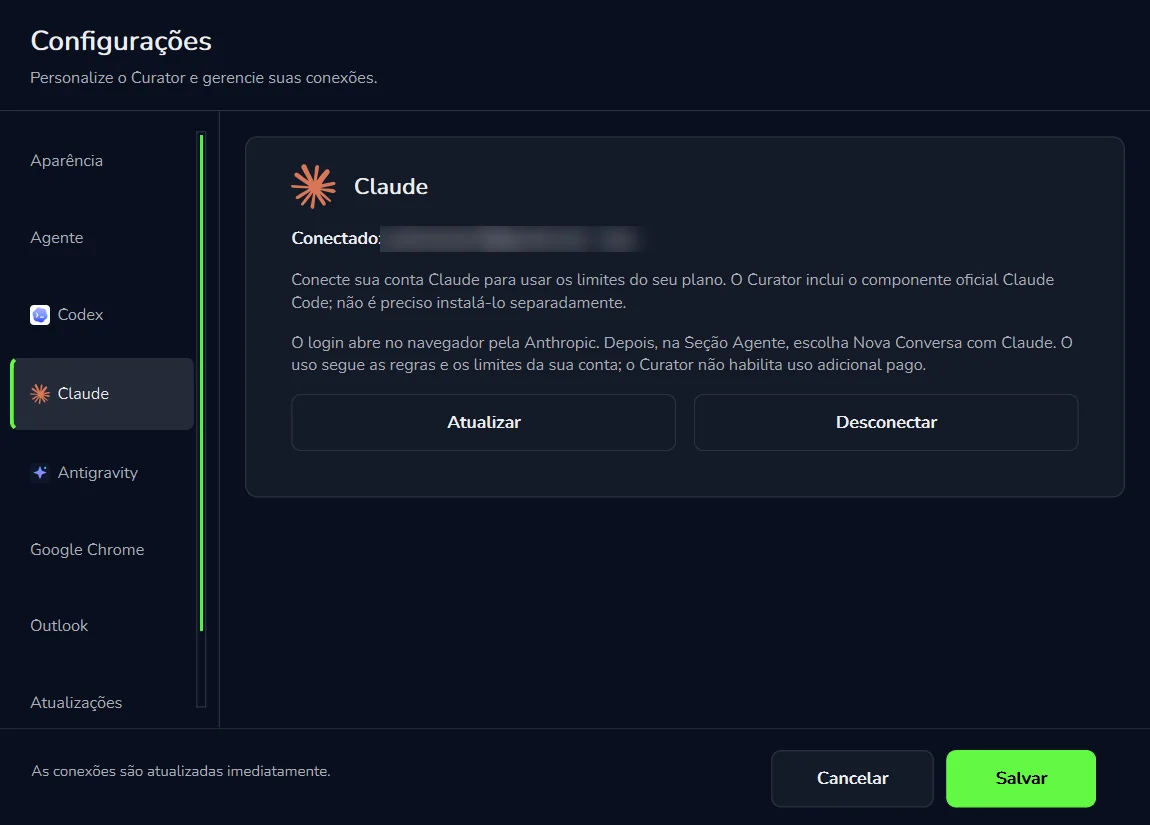
The screen puts it like this: connect your Claude account to use your plan's limits; Curator includes the official Claude Code component, so there's no need to install it separately.
Open “Configurações” → “Claude”
In the list, between “Codex” and “Antigravity”.
Sign in with your Claude account
Sign-in opens in your browser, through Anthropic. Use the account of the plan you subscribe to.
Go back to Curator and check
The screen shows “Conectado:” (connected) with your account and plan (for example, “max”), and the “Atualizar” (refresh) and “Desconectar” (disconnect) buttons.
Start a conversation with Claude
In the “Agente” tab, choose “Nova conversa” with Claude. The conversation gets the “Claude” badge in the “Conversas” (conversations) column, and “Custo —” appears above the message box.
“Configurações” → “Claude”. The footer notes that connections update immediately.
What the screen guarantees
Nothing to install. The official Claude Code component already comes with Curator.
No extra charges. Usage follows your account's rules and limits; Curator doesn't turn on paid extra usage.
The same account fixes robots. In the Curador, choose “Claude Code” under “Motor do Curador” → “Executar com”: fixes come out of your plan's limits too.
Claude and Codex together
You can connect both accounts and decide per conversation. If one plan's limit is running low, start the next conversation on the other engine.
Antigravity
Antigravity is the third AI account you can connect, from Google, alongside Codex and Claude. Its section sits right below “Claude” in the list, and Antigravity also appears as an option in the Curador, under “Motor do Curador” → “Executar com”.
Where to connect“Configurações” → “Antigravity”
Where to use itCurador → “Motor do Curador” → “Executar com” → “Antigravity”
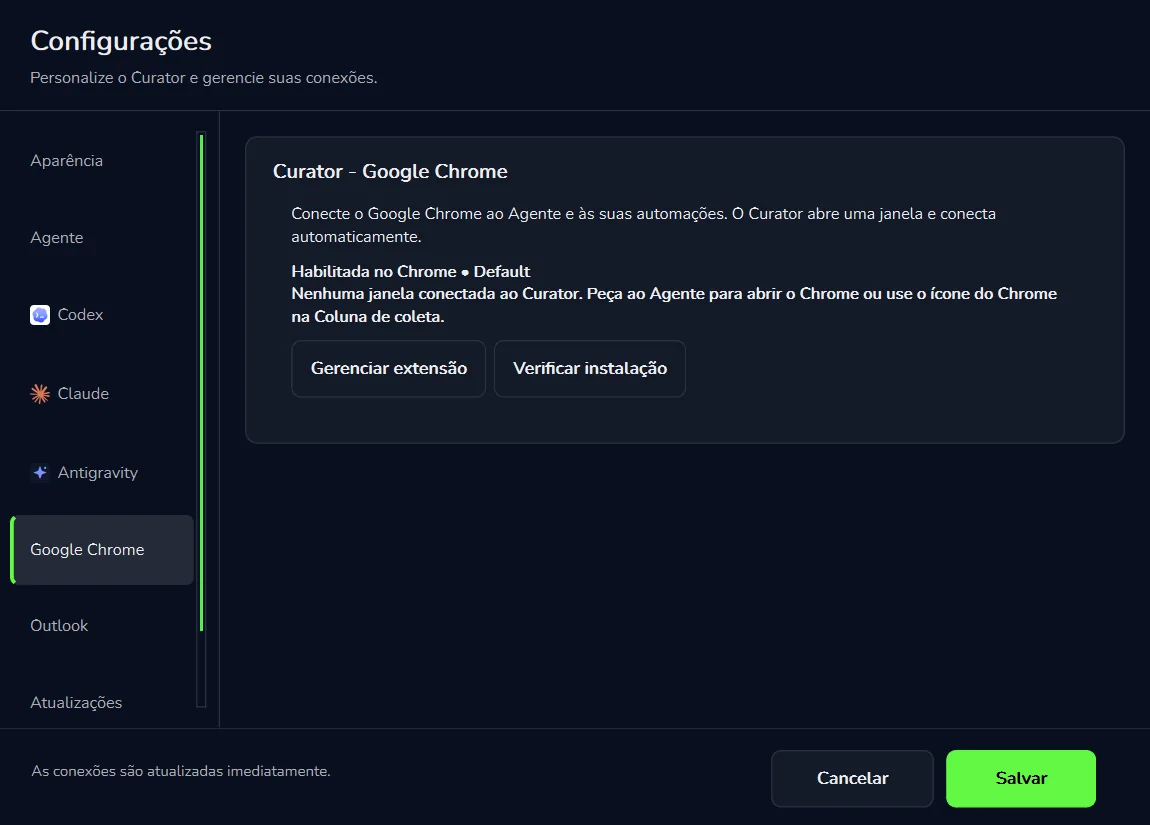
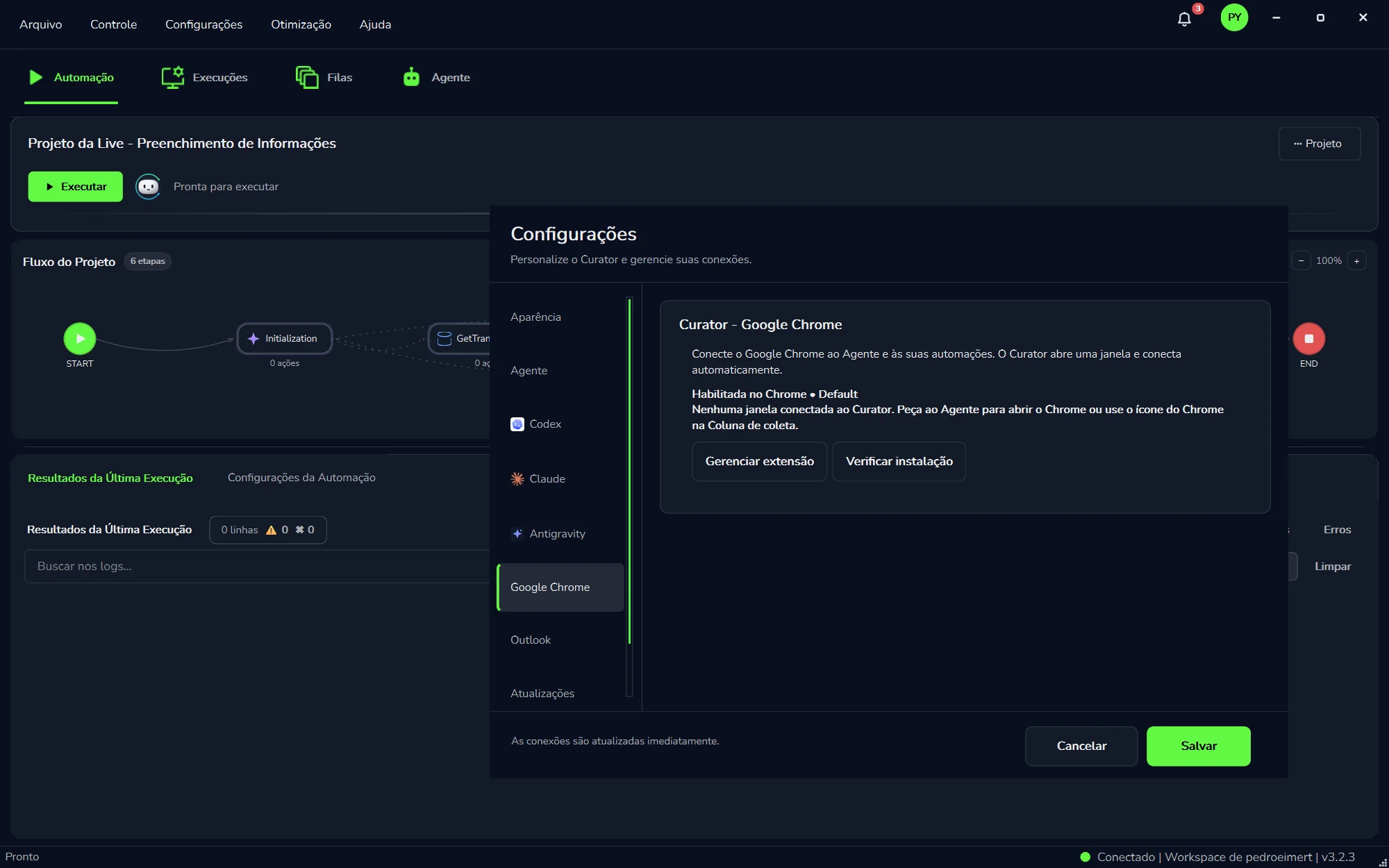
The Agent and your automations work in the real Google Chrome, linked to Curator by a Chrome extension. This section, titled “Curator - Google Chrome”, shows whether the extension is ready and whether a window is connected. As the screen explains: connect Google Chrome to the Agent and your automations; Curator opens a window and connects automatically.
On screen
What it means
“Habilitada no Chrome • Default”
The status of Curator's extension in Chrome: enabled, in this case.
“Nenhuma janela conectada ao Curator.”
No Chrome window is linked to Curator yet. The screen itself tells you what to do: ask the Agent to open Chrome, or use the Chrome icon in the “Coluna de coleta” (collection column).
“Gerenciar extensão”(manage extension)
For managing Curator's extension in Chrome.
“Verificar instalação”(check installation)
For checking that the installation is right. It's the first button to try when Chrome won't connect.
Check the extension
Under “Configurações” → “Google Chrome”, check that it says “Habilitada no Chrome” (enabled in Chrome).
Open a connected window
Ask the Agent in the conversation to open Chrome, or click the Chrome icon in the “Coluna de coleta”. Curator opens the window and connects on its own.
Follow along in the conversation
What the Agent does in the browser shows up in lines like “› Executou 1 ação no Chrome” (ran 1 action in Chrome).
“Configurações” → “Google Chrome”. With the extension enabled, all that's left is opening a window: through the Agent or the “Coluna de coleta”.
Keep Curator up to date
The official 3.2.3 release notes include connection recovery the first time Chrome opens. If the connection keeps failing, make sure you're on the latest version under Updates. More on Chrome in Chrome and element collection.
Outlook
A lot of work starts with an email: the invoice that comes in, the bill attached. The “Outlook” section (“Outlook clássico · E-mails no Agente”, classic Outlook · email in the Agent) connects the Agent to your email: you connect your classic Outlook accounts and choose which of them the Agent may check. Then you just ask in the conversation.
Open “Configurações” → “Outlook”
In the list, right above “Atualizações”.
Click “Conectar e atualizar contas”
That's “connect and refresh accounts”: it connects your classic Outlook accounts.
Choose which accounts the Agent may check
Allow only the accounts the Agent needs to see.
Ask in the conversation
In the “Agente” tab, type your request, like the example the screen itself suggests:
You, in the “Agente” tab“Leia as notas fiscais e baixe os anexos” (read the invoices and download the attachments)
The rules on screen
Queries send the data to the selected AI model.What the Agent reads in your email goes to the chosen AI model. That's why you should allow only the accounts it needs.
Mailbox changes ask for your confirmation in the chat.Before changing anything in your mailbox, the Agent asks for your yes in the conversation.
Each automation uses the account set in its project.When the robot runs, it uses the account defined in that automation's project.
The new Outlook isn't supported.The connection works with classic Outlook.
Classic Outlook, not the new Outlook
If your accounts are only in the new Outlook, they won't work here: the new Outlook isn't supported. Use classic Outlook.
Curator looks for new versions on its own every time it opens. To check right now, without closing the app, use this section.
Open “Configurações” → “Atualizações”
It's the last section in the list.
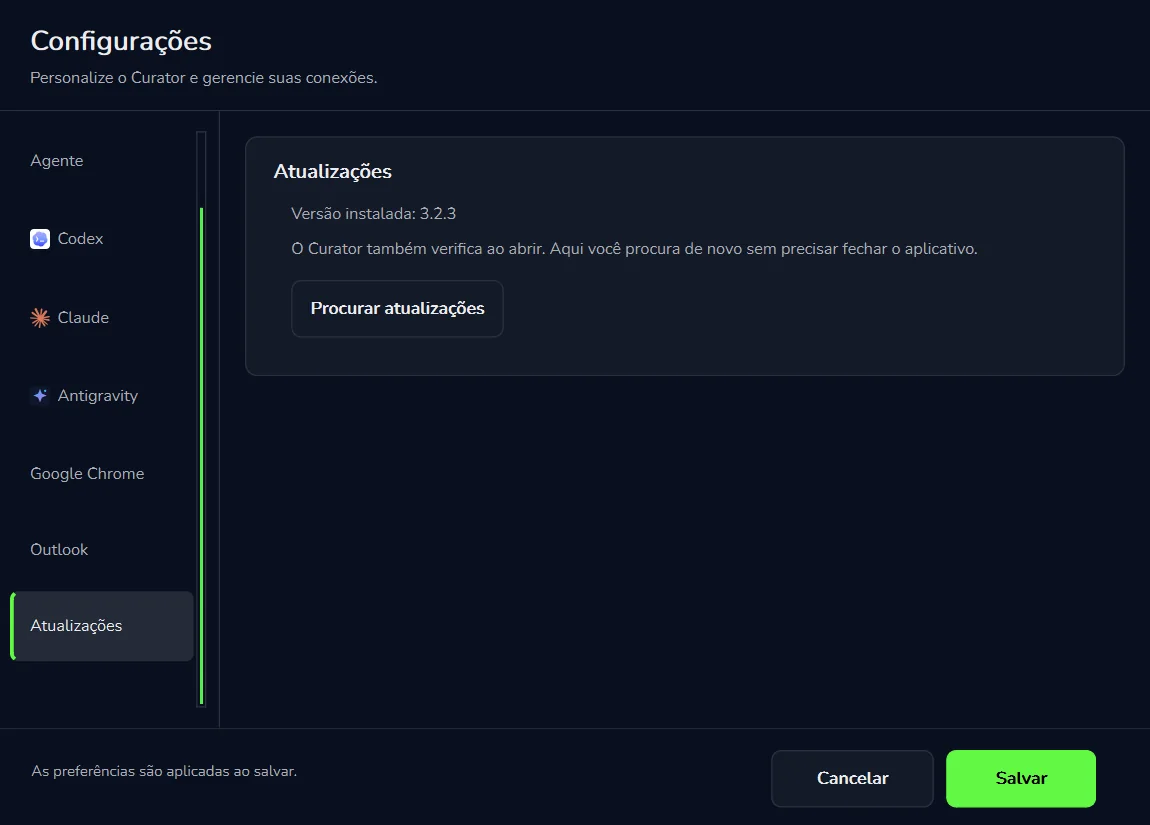
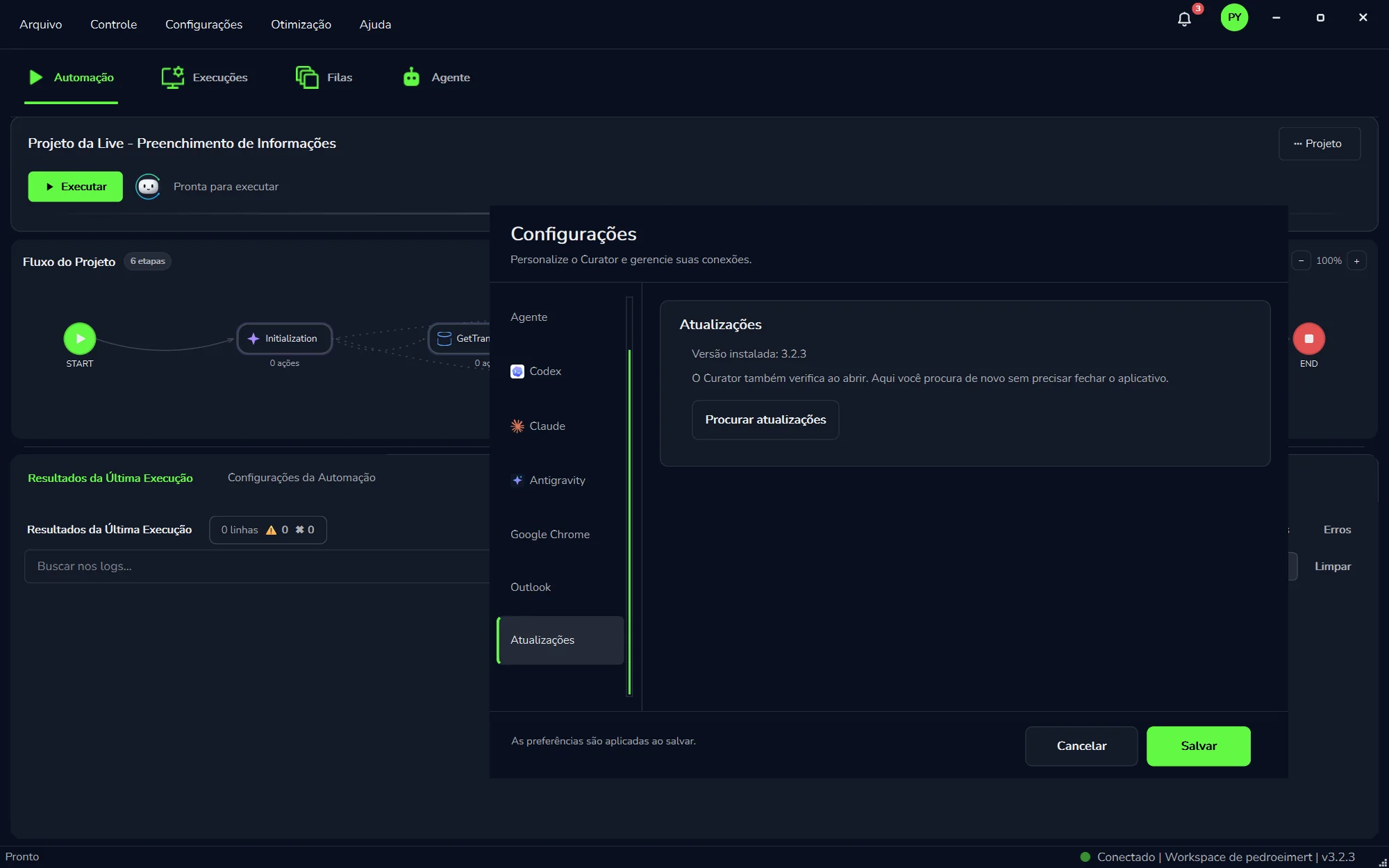
See the “Versão instalada”
That's the installed version. The latest Curator version is 3.2.3.
Click “Procurar atualizações”
That's “check for updates”. As the screen says, Curator also checks when it opens; here you can check again without closing the app.
“Configurações” → “Atualizações”. With the list scrolled to the end, “Atualizações” is highlighted.
Curator works by workspace, the space you share with your team. The workspace you're in is shown in the status bar at the bottom right: “● Conectado | Workspace de <name> | v3.2.3” (connected, workspace of <name>).
The “Equipe” (Team) screen answers one question, written at its top: who can enter this workspace, and with which role. On it you'll find:
“Workspace” selectorPicks the workspace you're looking at.
“Você é Administrador” (you are Administrator)Your role in the open workspace.
“Novo workspace” (new workspace)Creates another workspace.
“Convidar pessoa” (invite someone)Brings someone into the workspace.
The list of peopleWho can enter, each with their role.
“Convites à espera” (pending invites)Invitations not yet accepted.
The roles
These are the roles shown on the “Equipe” screen:
Administrador (owner)
Desenvolvedor (developer)
Operador (operator)
To bring someone into your workspace
Open the “Equipe” screen.
In the “Workspace” selector, make sure you're in the right workspace.
Click “Convidar pessoa”.
Until the person accepts, the invitation stays under “Convites à espera”.
The team in the portal too
The PYE Tech web portal (pyetech.com.br/Portal) has your machines, triggers, runs, queues and team. See Runs and triggers → portal.
AI usage
The “Uso de IA” (AI usage) window is there to help you understand where AI was used, check the measurements and follow the calculated cost. It's the place to answer questions like “how much did AI work this month?” and “which model weighed the most?”.
The four cards
“Custo calculado” (calculated cost)The cost of usage, calculated by Curator, in US dollars.
“Tokens”The total tokens used.
“Entrada” (input)What was sent to the model, including cache reads.
“Saída” (output)What the model returned, including reasoning.
The table
The numbers are split into two tabs, “Por modelo” (by model) and “Histórico” (history). The table has these columns:
Column
What it shows
Provedor(provider)
The company behind the model, such as Anthropic, OpenAI or Google.
Modelo/Origem(model/source)
The model used and where the usage came from.
Entrada · Saída(input · output)
The tokens sent to the model and the ones it returned.
Custo(cost)
The calculated cost of that row.
Tokens
The total tokens of that row.
To check usage for a period
Open the “Uso de IA” window.
Pick the “Período” (period).
Leave “Todas as origens” (all sources) to see everything, or filter one source.
Read the four cards, then switch to “Por modelo” or “Histórico”.
Need the numbers in a spreadsheet? Click “Exportar CSV” (export CSV).
“Valores calculados, não uma fatura.” (calculated values, not an invoice)
The window says so itself: the numbers are Curator's own calculation, so you can keep track of usage. With an API key, the provider bills you per token. With Claude and Codex, usage comes out of your plan's limits, which is why the conversation shows “Custo —”.
Spending a lot on an interpreter?
Compare models on the same task with Benchmark and pick the one with the best accuracy for the cost.
Your data
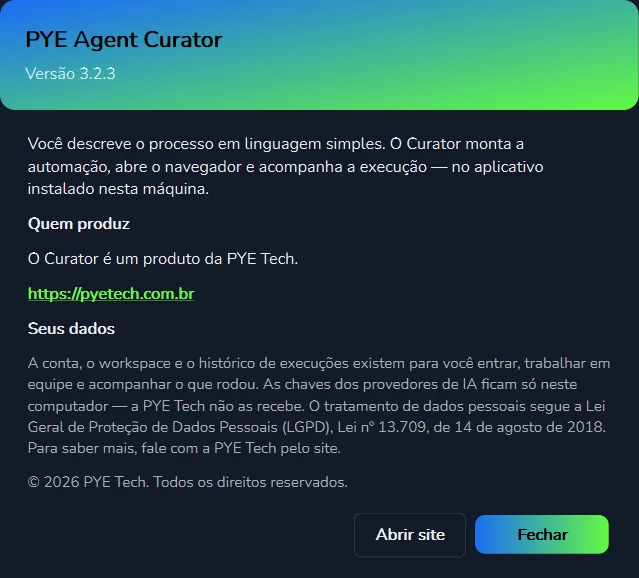
Curator's “Sobre” (About) window sums up, in a few lines, what the app is and what happens to your data. It opens like this: you describe the process in plain language; Curator builds the automation, opens the browser and follows the run, in the app installed on this machine.
The “Sobre” window. Under “Seus dados”, what stays on the computer and what lives in your account.
What stays where
On this computer onlyYour AI provider keys. PYE Tech never receives them.
Account, workspace and historyThey exist so you can sign in, work as a team and follow what has run.
Local historyWith Codex, conversations and attachments stay in Curator's local history.
Email the Agent readsWhen the Agent checks Outlook, the data goes to the selected AI model.
Personal data is handled under Brazil's General Data Protection Law (LGPD), Law No. 13,709 of August 14, 2018. To learn more, read the Privacy Policy or contact PYE Tech at contato@pyetech.com.br.